Home Page
The home page is the landing page after a user signs in. It is also available by clicking the brand logo located at the top left of the screen.
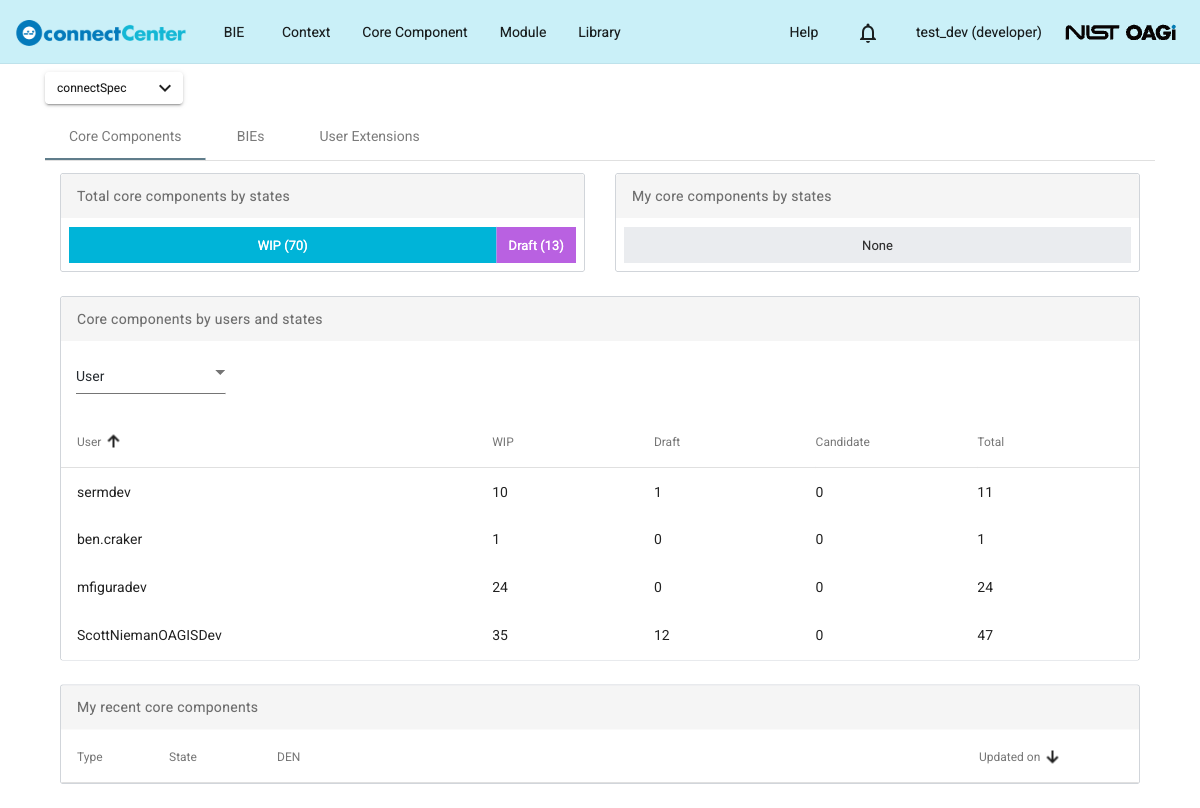
The home page is a dashboard page. It provides summary statistics about core components, BIEs, and user extensions, organized into tabs. Its content depends on the current user role and the system configuration.
The figure below shows the home page for a user with the developer role, with the "Core Components" tab selected:
Library selector
At the top of the page, the user can select a library by using the library selector.
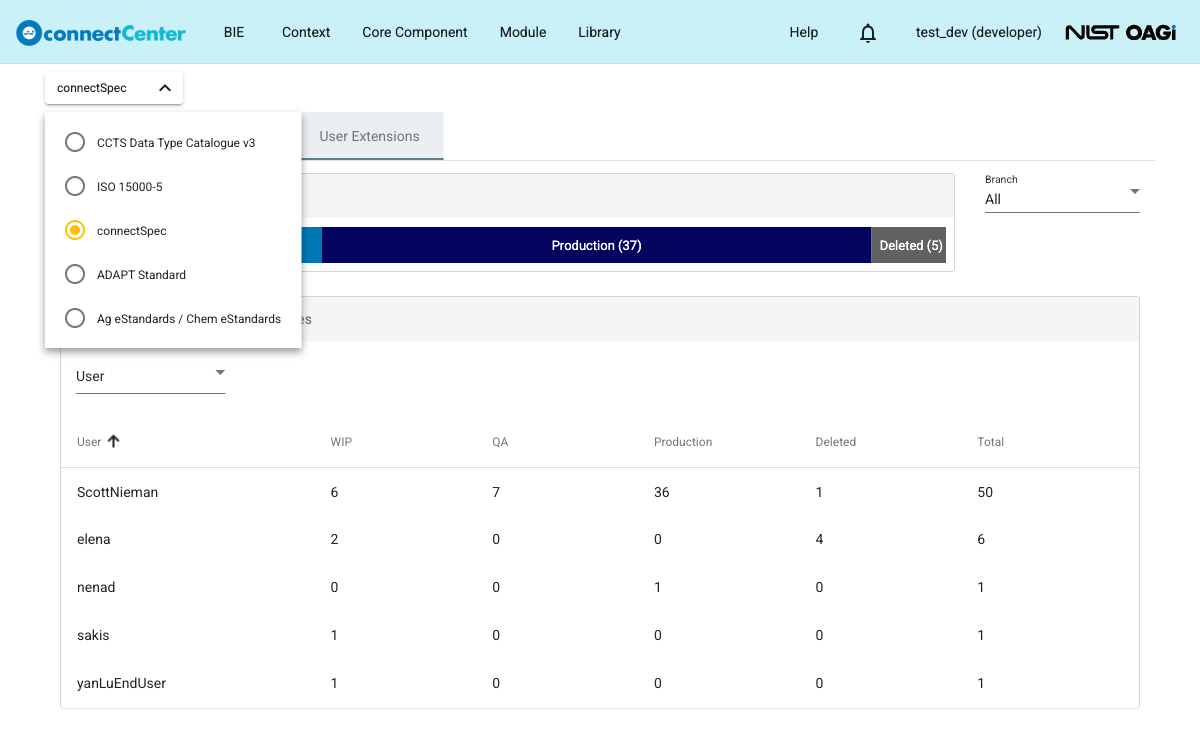
If the user has not chosen a library preference yet, connectCenter preselects the default library and shows it first in the selector. The selection is remembered in the browser and restored on the next visit. The dashboard data on the page is loaded for the selected library.
Tabs
The home page can contain up to three tabs. Which tabs are shown depends on the current user role and the system configuration:
| Tab | Availability | Description |
|---|---|---|
| "Core Components" | Users with the developer role only. The tab is hidden for end users. | Summary statistics about core components. |
| "BIEs" | All users. | Summary statistics about BIEs. |
| "User Extensions" | All users, unless multi-tenant mode is enabled. | Summary statistics about user extensions. |
The "User Extensions" tab is disabled when multi-tenant mode is enabled. In that case, the tab remains visible but is greyed out and cannot be opened.
For example, a user with the end-user role sees only the "BIEs" and "User Extensions" tabs:
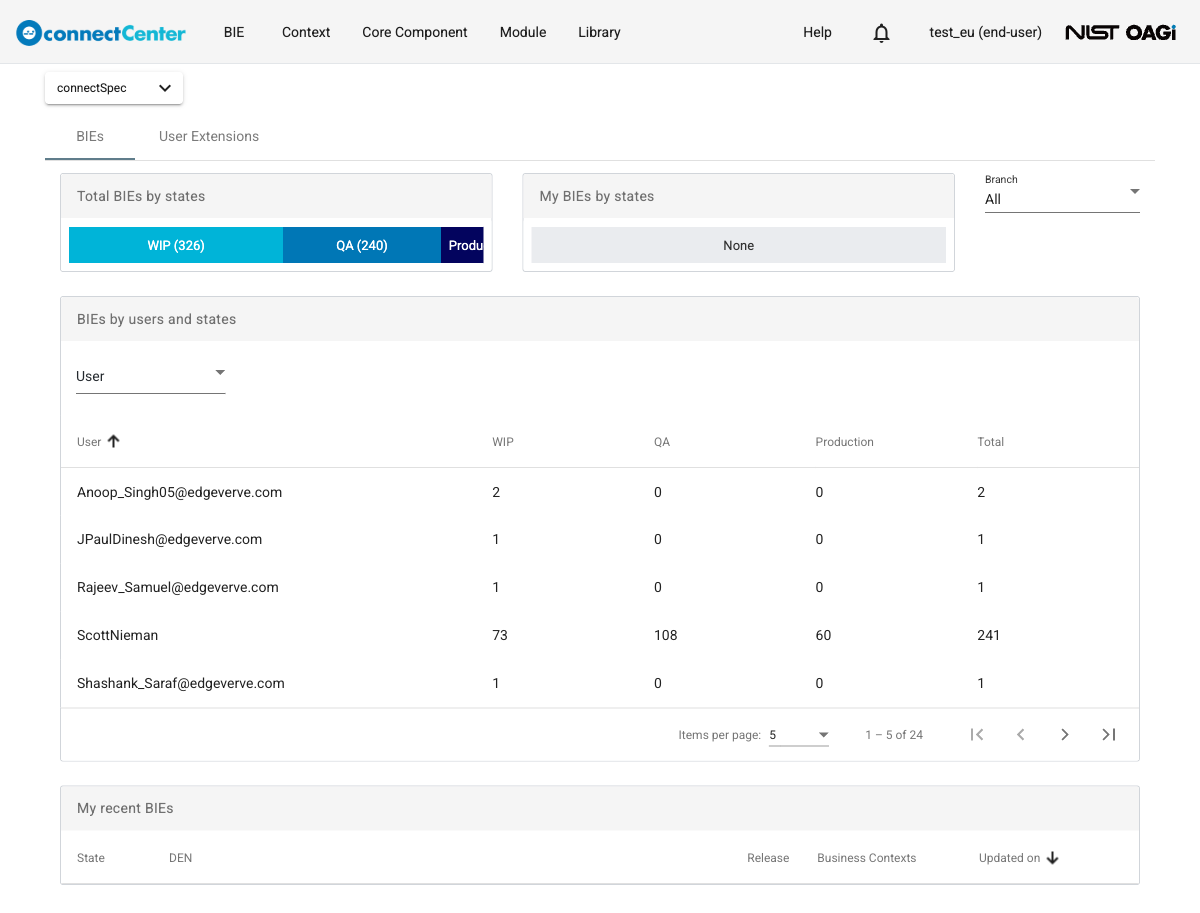
The "BIEs" and "User Extensions" tabs also provide a "Branch" selector for filtering their panels by release; see the corresponding sections for details.