Search and Browse CC Library
This section describes how to search and view core components. Core Components can be partitioned or grouped in many ways using filters described in this section, in addition to the different CC types according to CCS described in the Core Component in Brief section.
Drop-down List
Most drop-down lists have a built-in filter. This is particularly useful when a list is big. The filter is displayed after a drop-down list is clicked. The user can narrow down the values in the list by typing in a few characters. For example, in the owner drop-down, typing in "oa" will narrow down the list to usernames containing "oa".
How to Search and Filter for a Core Component
Searching for a Core Component is performed on the "Core Component" page. To visit this page:
-
On the top menu of the page, click "Core Component".
-
Choose "View/Edit Core Component" from the drop-down list.
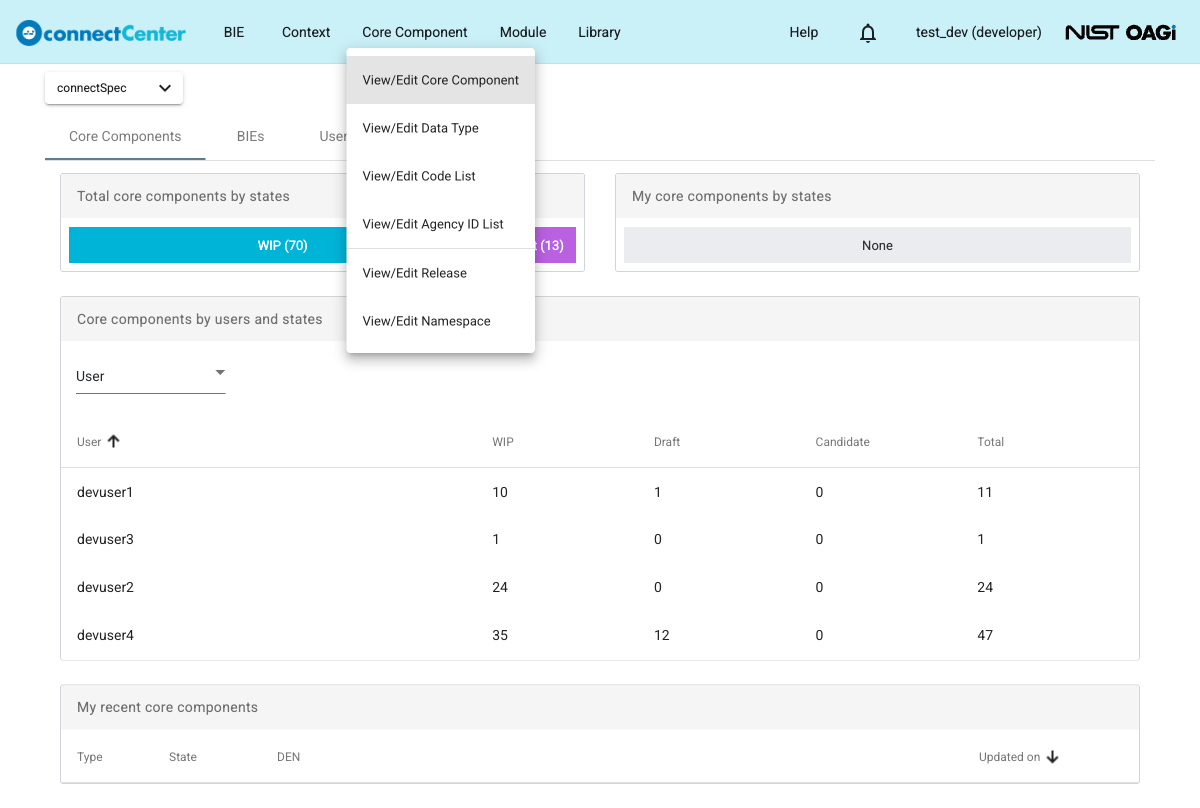
The "Core Component" page is returned. This list page is separate from the "Data Type" page: the Core Component page lists ACC, ASCCP, and BCCP entries, while Data Types are managed on the separate "Data Type" page. When the application-level Browse Standard mode is enabled and the signed-in user is an end user, the top menu shows a "Browse Standard" button instead of the "Core Component" menu, and it opens the same list page in a browse-only mode titled "Standard".
The page title bar includes a Library selector. If the user has not chosen a library preference yet, connectCenter preselects the default library and shows its name on the selector button.
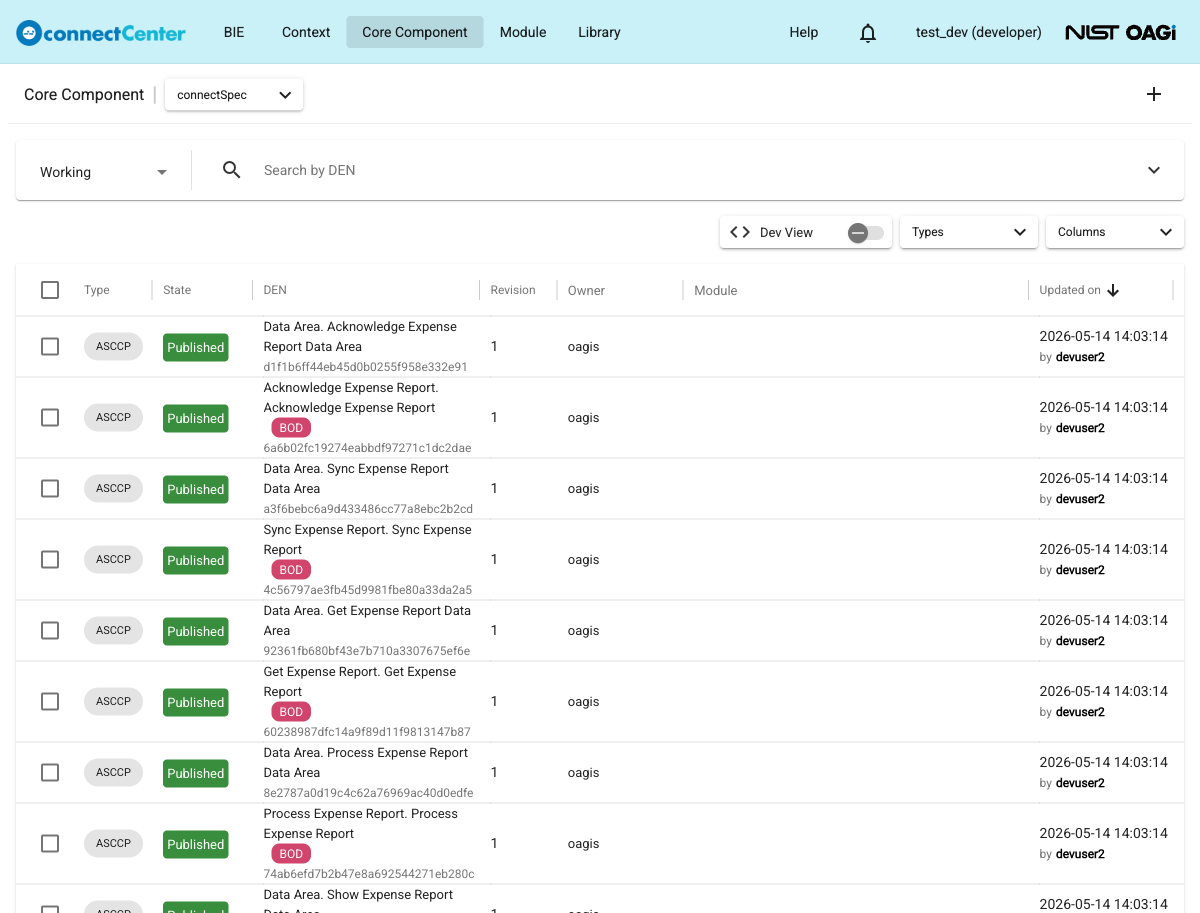
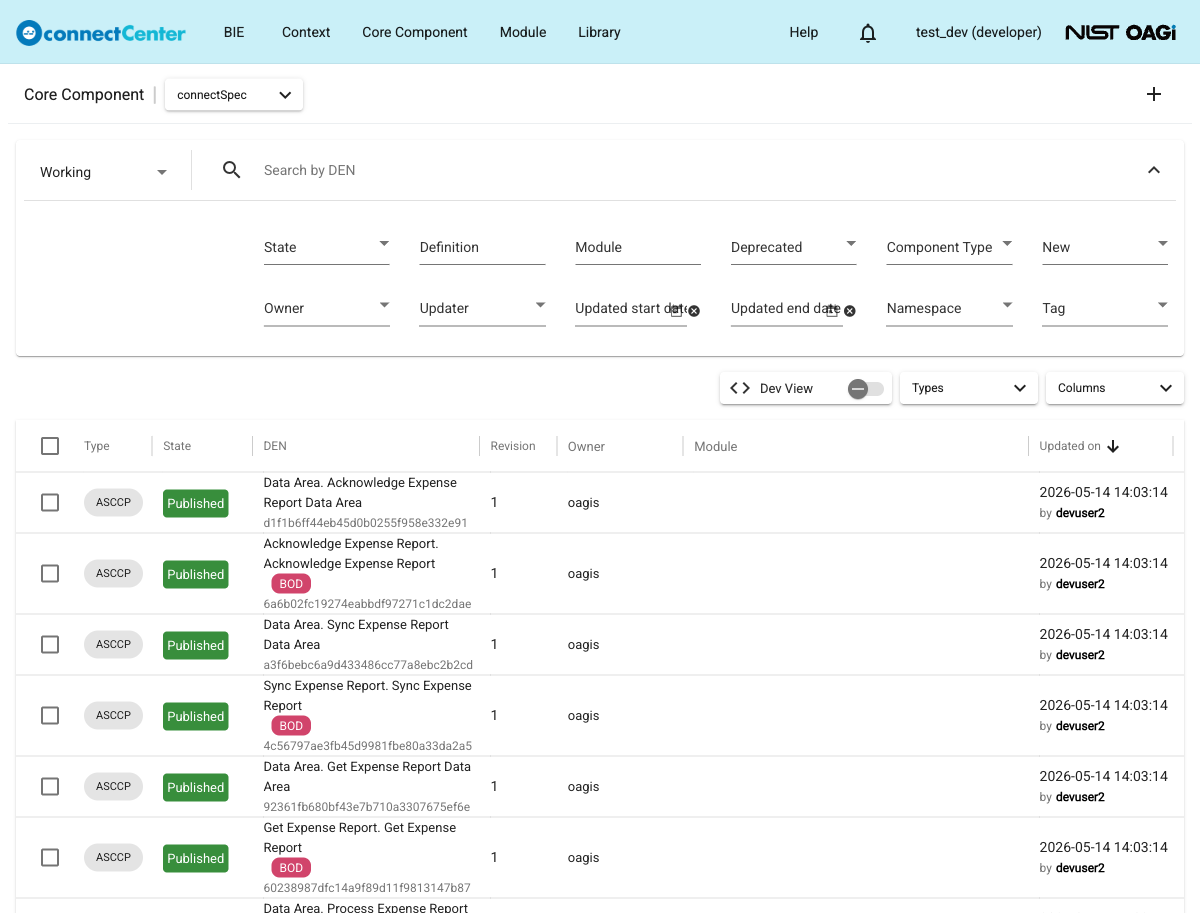
The page includes a search bar with a "Branch" selector on the left. On the regular Core Component page, the search field is labeled "Search by DEN" and the chevron-down button at the right end of the search bar expands the Advanced Search filters. On the "Standard" (Browse Standard) page, the search field is labeled "Search by Name" instead, and Advanced Search is not available. Unless otherwise stated, the filters below describe the regular Core Component page.
-
"Branch" allows for filtering the Core Components based on their release. To do this:
-
Choose the release you would like to view from the "Branch" selector on the top-left of the search bar. Specifically, "Working" means the release being worked on, based on the latest release. In other words, if the current latest release is "10.6", "Working" means 10.6 plus changes; and if "10.6" or "10.5" is selected then only core components and their details as they were at the release will be displayed. All releases are generally incremental. See also Branch.
noteAny change in the "Branch" selector of a CC-related page is stored and used across all CC-related pages, i.e., the "Core Component", "Data Type", "Code List", and "Agency ID List" pages. The "Code List" page is considered CC-related when it is visited via "View/Edit Code List" under the "Core Component" menu. However, it is considered BIE-related when it is visited via "View/Edit Code List" under the "BIE" menu.
-
-
"Types" allows for filtering the results based on the CC type. It is the selector next to the "Columns" selector above the result table (not part of the Advanced Search panel). To use this filter:
- Click on it and check or uncheck the "ACC", "ASCCP", or "BCCP" checkboxes, or click "Reset". If no type is selected, the filter is not used. Data Types are not part of this page; they are managed separately on the "Data Type" page. In Browser View, developer and admin users can filter by "ASCCP" and "BCCP", while end users can browse only ASCCPs. On the "Standard" (Browse Standard) page, the list is fixed to ASCCPs and excludes Extension and Data Area ASCCPs.
-
"State" allows for filtering the results based on Core Components' state. To use this filter:
- Click on it and check the checkboxes to list core components in those states. If no State is selected, the filter is not used. The available options depend on the selected branch: the Working branch offers "WIP", "Draft", "Candidate", "Release Draft", "Published", and "Deleted", while a release branch offers "WIP", "QA", "Production", "Published", and "Deleted". For definitions of states, see the CC states section. See also the CC unit of control section.
-
"Deprecated" allows for filtering in or out deprecated CCs. Select "True" to show only deprecated CCs or "False" to show only CCs that are not deprecated. Both are included when neither option is selected.
-
"Component Type" enables filtering ACCs based on the Component Type that supports connectSpec architecture. To use this filter:
- Check the desired checkboxes next to the Component Type. If no selection is performed, the filter is not used. Note that Component Type only applies to ACC; when any Component Type is selected, the result list automatically contains only ACCs, so there is no need to also set the "Types" filter.
-
"New" allows for filtering CCs on whether they are new in the selected branch (i.e., first introduced there rather than carried over from a previous release). Select "True" or "False".
-
"Owner" and "Updater" allow for filtering by the user who owns the CC and the user who last updated it. "Updated start date" and "Updated end date" restrict the results to a last-update period.
-
"Tag" enables filtering components based on the tag. Note that this only applies to the CC associated with the tag(s). See Tagging CCs for more details. To use this filter:
- Check the checkboxes to list core components that associated with the tag(s).
-
"Namespace" enables filtering components based on the namespace assigned to components. To use this filter:
- Check the checkboxes to list core components that related to the namespace(s).
-
Free form text filtering based on CCs' DEN (dictionary entry name), "Definition", "Module" or a combination of them. The matching is case insensitive. To use these filters:
-
Enter a search string in the "Search by DEN" field (the name of the core component), "Definition" field, or "Module" field and press Enter or click the magnifying-glass button. Note that search strings entered in the three fields are treated as having an AND logical relationship.
-
It is important to note that the DEN is stored in space-separated format (while the XML schema or other expressions of the standard may have the name formatted in camel case). For example, type in "Employee Count" instead of "EmployeeCount". In addition, "ID" is stored as "Identifier" in DEN.
-
The "Definition" field allows you to find a core component whose definition matches the input string. The content in the Definition is generally written in normal language grammar. Keep in mind though that if you try to match a data element name in the Definition, it may still be in the camel case format. The tool does not parse the Definition when it is imported. Unfortunately, when standard developers refer to data elements in the definition there is no consistent convention. For example, one definition may be "Address of the Customer Party" while another may be "Business Unit of the CustomerParty". Notice that the format of the "Customer Party" data element is inconsistent in the two definitions.
-
A good technique is to search with longer input string first, if nothing found try changing to different synonyms, and also try shortening the input string where more results, yet less accurate, will be returned.
-
Use double quotes around the search terms in the DEN and "Definition" fields, to match the exact substring as in the double quotes. For example, if search input in the DEN field is ""Name Identification"", part of the DEN has to match the whole search input. In other words, a component with DEN "Named Identification. Details" won't be returned. However, if the search input in the DEN field is "Name Identification" without double quotes, DENs that partially match both tokens will be returned. In other words, the CC with DEN "Named Identification. Details" will be returned.
-
The "Module" field allows for filtering based on the physical file path the core component resides based on the Module Assignment in connectCenter. The path is stored without the file extension, such as ".xsd". In the case of the connectSpec standard, for example, all shared components reside in subfolders of the "Common" folder under the platform model, and nouns are serialized to the respective noun module (e.g. a "Nouns\PurchaseOrder" or "Nouns/PurchaseOrder" path, depending on how the module set was defined). To search only shared components, the user may enter "common" in the "Module" field. Or, to search only about nouns, the user may enter "nouns" in the "Module" field.
-
After searching for a CC, clicking anywhere in the row will display its definition. Click on its DEN to open its detail page.
The "Columns" selector above the table lets the user show, hide, and reorder table columns; the visible columns and their widths are remembered per user.
Browser View Mode
The Top-Level BIE is generated from an ASCCP (see BIE in brief), and you might want to see how it will appear before creating the BIE. The "Browser View" mode is used to meet this need. When in "Dev View" mode, the regular Core Component page supports creation, bulk actions, and the full Core Component filter set. However, in Browser View mode, the page is focused on browsing and opens ASCCP and BCCP entries in browser-style detail pages. To switch between Dev View and Browser View, use the slide toggle above the result table; its label reads "Dev View" or "Browser View" according to the current mode. In Browser View on the regular Core Component page, developer and admin users can browse ASCCP and BCCP entries, while end users can browse ASCCP entries only.
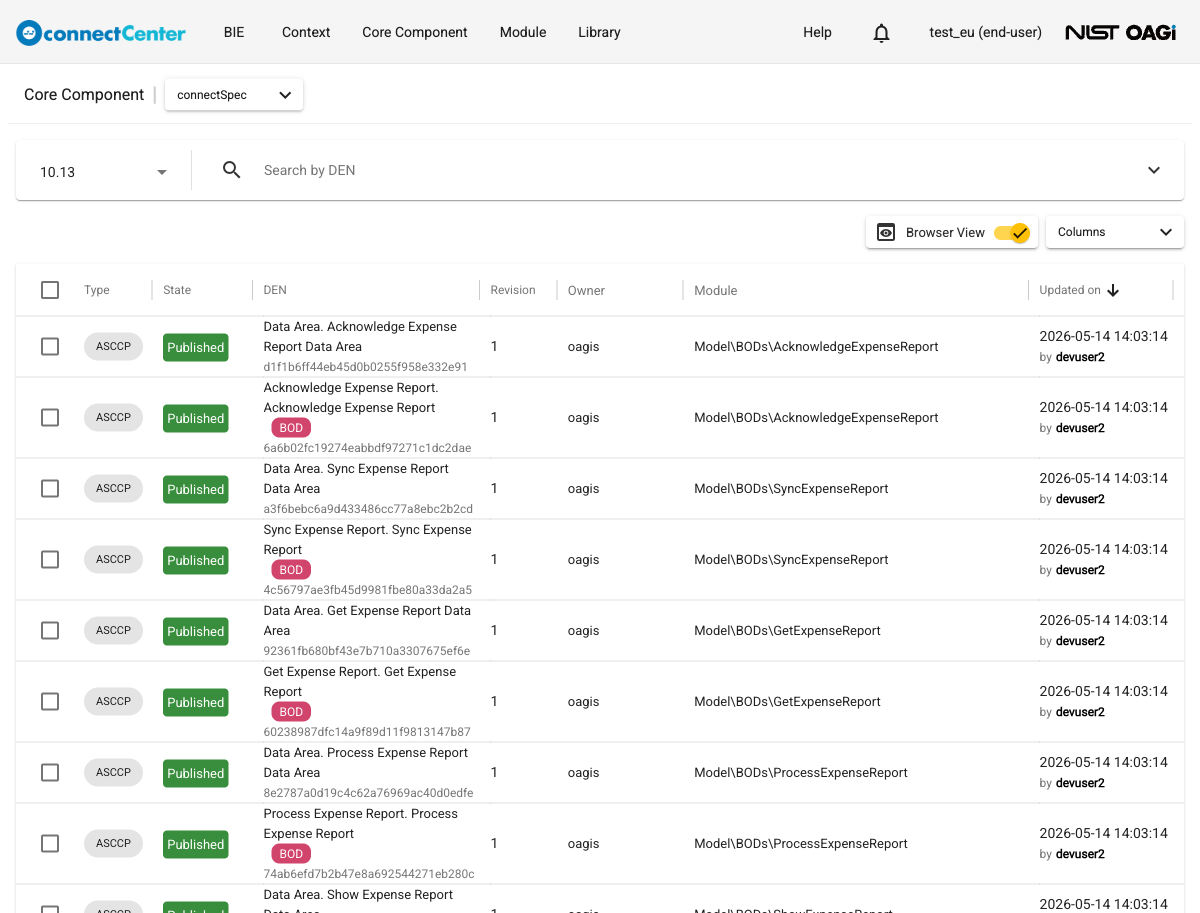
When Browse Standard mode is enabled in the application settings, end users do not use the regular "Core Component" menu. Instead, they see the separate "Browse Standard" top-menu button, which opens the page in a forced browser-style mode titled "Standard": it searches by Name, hides Advanced Search and the bulk-action controls, and lists ASCCPs only (excluding Extension and Data Area ASCCPs).
How to Read a Core Component
After searching for a Core Component (see How to Search and Filter for a Core Component), you can view its details by clicking its DEN (DEN column). Clicking anywhere else in the row and the row will be expanded to show the definition of the CC. On the "Standard" (Browse Standard) page, click the Name link instead of the DEN link.
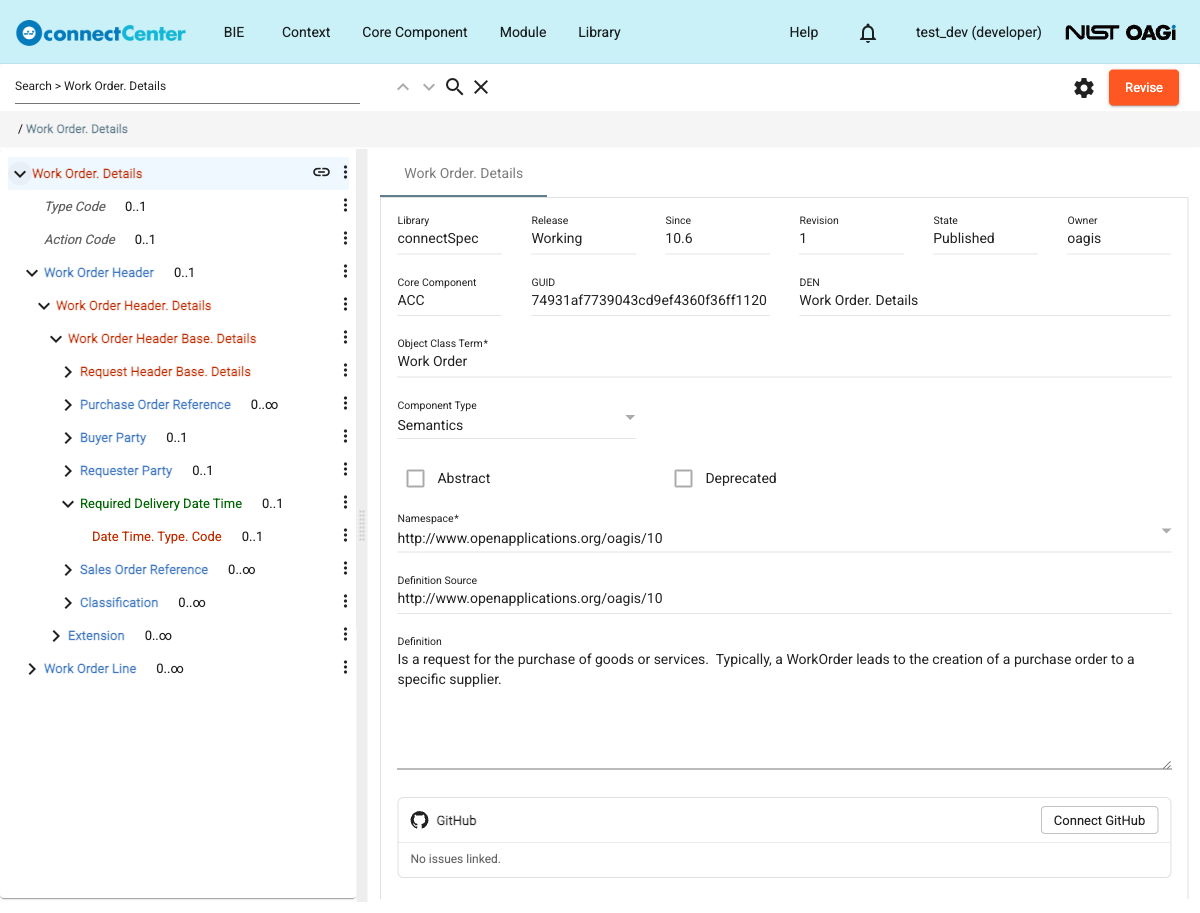
Doing so, a page is returned having the name of the CC you have chosen. This page is divided into the two panes; the left one depicting the structure of the CC in the form of a tree and the right one showing the fields of a selected CC in the tree.
The CC tree is a data structure in which different types of components are organized through the tree hierarchy. The table and figure below provide a quick reference to what these types of CCs are. The following five (5) formats are used to distinguish different types of components in the tree:
-
Bold Red font is for an ACC. Another way to recognize an ACC in the tree is it is displayed with its DEN, which ends with ". Details". When there is an ACC node directly under another ACC node, the node on the top is based on (i.e., extends) the bottom ACC and inherits all properties from the bottom (based) ACC.
-
Bold Blue font is for ASCCs along with ASCCPs they use. This node displays the property term of the ASCCP.
-
Italic Grey font is for BCCs along with BCCPs and BDTs they use. These BCCs have been designated as attributes (as in XML Schema, it should be noted that this attribute designation is needed so that connectCenter can maintain backward compatibility with some standards that have their normative form in XML Schema). The node displays the property term of the BCCP.
-
Regular green font is for BCCs along with BCCPs and BDTs they use. This node displays the property term of the BCCP.
-
Regular red font is for Supplementary Components (SC).
In addition to the five formats, deleted components are shown in red with a strikethrough, deprecated components are shown with a strikethrough and a "Deprecated" tooltip, and tags appear as colored chips next to the node name. Each node also shows its cardinality as "min..max" next to the name; the tree's settings (gear) menu has a "Hide cardinality" option to hide it.
The screenshot below shows the "Work Order. Details" ACC as an example. The root node is the ACC itself (bold red). "Type Code" and "Action Code" directly underneath it are BCCs designated as attributes (italic grey). "Work Order Header" is an ASCC and ASCCP bundled into one node (bold blue); under it, the tree shows that its ASCCP was created from the "Work Order Header. Details" ACC (bold red). The ACC node directly under the "Work Order Header. Details" ACC, "Work Order Header Base. Details", is its based ACC, which in turn is based on "Request Header Base. Details". "Required Delivery Date Time" is a BCC serialized as an element (green), and "Date Time. Type. Code" under it is a Supplementary Component of its data type (regular red). Whenever a node in the tree is selected, its details are depicted on the right pane.
Order sibling components in the tree
On the browser-style detail pages (the pages opened from Browser View, also called the model browser) and in the BIE editor, a developer can control the order in which sibling nodes (the attributes and associations under an aggregate node) are displayed. This ordering is a view preference only: it changes how the siblings appear in the model browser and in the BIE editor, but it does not change the order of elements in a generated schema or BIE expression (those follow the components' sequence keys).
This view-only ordering exists on the browser-style pages only. On the regular (Dev View) detail page of an ACC in the WIP state, dragging a sibling with its handle performs a real re-sequencing of the model that does affect generated output — see Order the properties/associations.
Each sibling has an order weight, and siblings with weights are shown by order weight descending.
A sibling that has not been given a weight uses a default of 0, so a positive weight moves it above the unweighted siblings and a negative weight below them.
When two explicitly weighted siblings have the same weight, they are ordered by name; ties involving an unweighted sibling keep the sequence-key order, so the fully default view is identical to the sequence-key order.
Weights need not be unique or sequential.
Reordering is available to developers only.
There are two ways to reorder siblings on a browser-style detail page:
- Drag and drop — hover a sibling to reveal its drag handle, then drag it above or below its siblings. connectCenter spaces the affected weights by 10 and rewrites only the weights that actually changed.
- Set an explicit weight — open a sibling's context menu and choose "Order Weight". On the "Set order weight" dialog, type an integer weight and save. If the sibling already has a weight, the dialog shows it and lets you reset to the default.
A sibling that has a custom weight shows a small order-weight badge next to its name. The badges follow the "Hide order weights" option in the tree's settings (gear) menu of the browser-style page; the option is off for developers and on for end users by default. To clear the custom order of the siblings under a node, open the context menu of their parent node and choose "Reset Order Weights".
The sibling order is stored per release. It is carried forward when a new release is drafted from the working branch, and it can be included in a release's migration script (see Generate the migration script).
Search within a Core Component Tree
On an opened "Core Component" detail page, the user can search for any descendant nodes, which can be various types of CC entities. To do this:
-
Click in the tree, on the node to be used as search scope. Only nodes under the selected node will be used as the search space. Alternatively, start the search term with "/" to search from the root node regardless of the selection.
-
Enter the search term in the search field above the tree pane. The match is a case-insensitive substring match of the node names; camel-case input such as "EmployeeCount" is automatically split into separate words.
-
Press Enter or click the search (magnifying glass) button. Some CCs are very big containing tens of thousands of nodes, so the search runs in batches: when there are more nodes to scan, the button offers "Search more..." to continue, and a hint such as "1/3 in 5000+ nodes" reports the progress.
-
Use the up and down chevron buttons next to the search field to move between matches, and the close (X) button to clear the search.
Find the usages (a.k.a. Where Used) of a Core Component
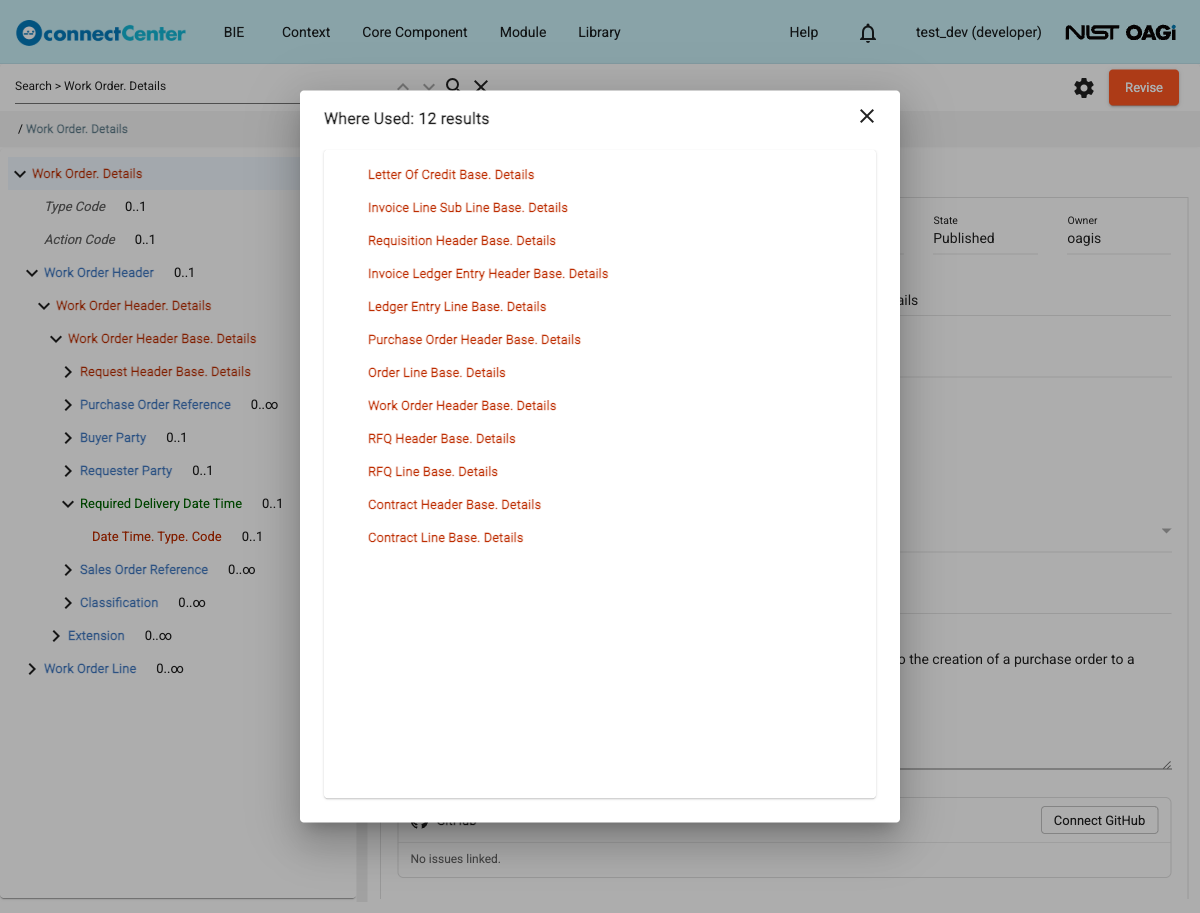
This function allows the user to research about how a CC has been used or referenced in other CCs. The function can be invoked on an ACC, ASCCP, or a BCCP. Invoked on an ACC, the application will display ACCs that are based on (extensions/subtype of) the ACC, and ASCCPs created from the ACC. Invoked on the ASCCP or BCCP, the application will show ACCs that have associations to it. To use this function:
-
Open a detail page of a core component.
-
Expand the tree.
-
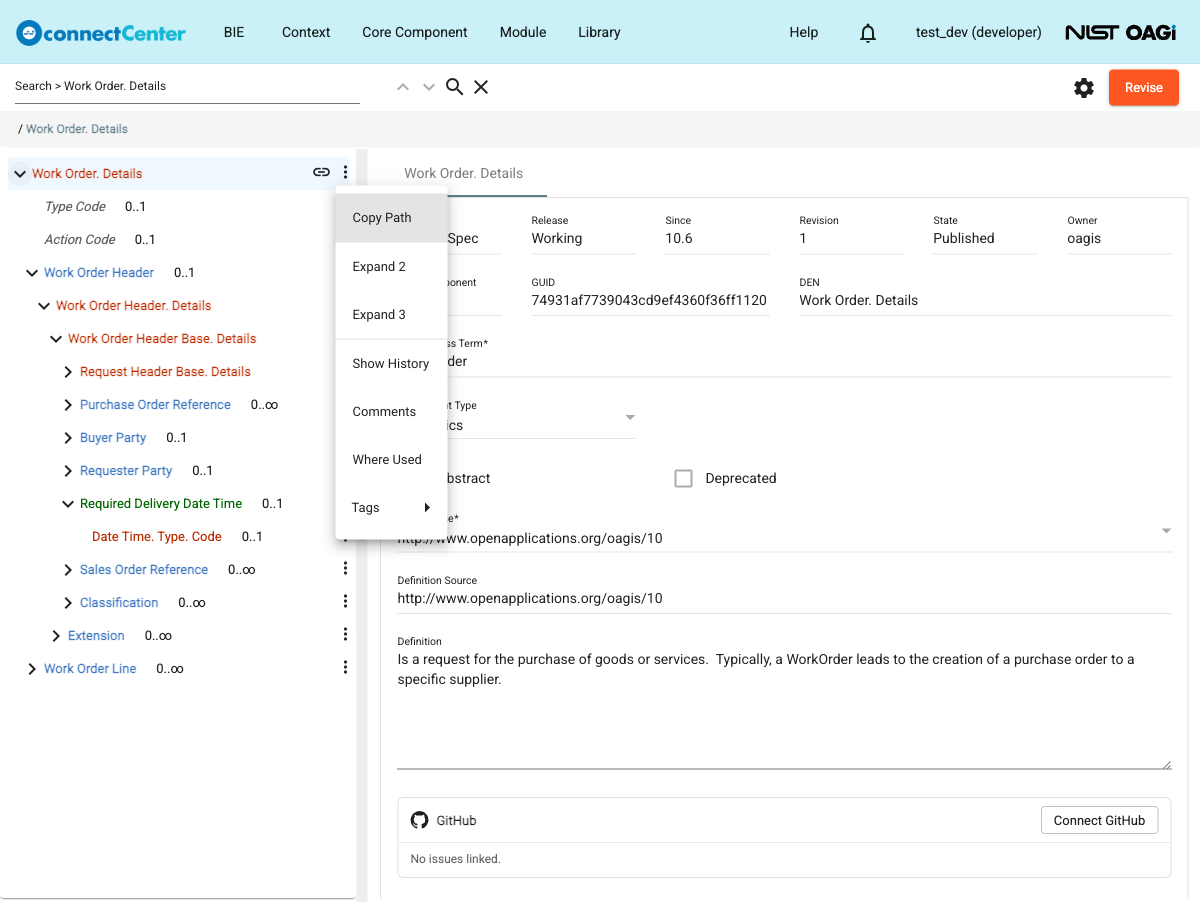
Click the ellipsis icon located next to any ACC (red), ASCCP (blue), or BCCP (green or grey) node.
-
In the returned context menu, click the option "Where Used".
-
The returned dialog lists the CCs wherein the specific node is used as described above; its title reports the number of results, e.g. "Where Used: 12 results".
-
Click on a listed CC to open its detail page in a new tab.
The same context menu offers other shortcuts, such as "Copy Path", "Expand 2"/"Expand 3" (expand the tree two or three levels in one click), "Show History", "Comments", "Tags", and, on nodes other than the root, "Open in new tab"; editable nodes offer more items described in the management sections.
Quick reference to different types of CCs
| CC Type | Full Name | Mapping to XML Schema | Examples |
|---|---|---|---|
| ACC | Aggregate Core Component | Type definition with complex content | Invoice Type, Address Type |
| BDT | Business Data Type | A simple content definition with or without attributes | Amount Type, Quantity Type |
| SC | Supplementary Component | Attribute of a BDT | Currency Code of the Amount Type, Unit Code of the Quantity Type |
| BCCP | Basic Core Component Property | Element definition with simple content (using a BDT) | Tax Amount or Total Amount using the Amount Type BDT |
| BCC | Basic Core Component | Element reference (using a BCCP) | The relationship from Invoice Type to Tax Amount BCCP, the relationship from Invoice Type to Total Amount BCCP |
| ASCCP | Association Core Component Property | Element definition with complex content reusing an ACC | Billing Address or Shipping Address using Address Type |
| ASCC | Association Core Component | Element reference using an ASCCP | The relationship from Invoice Type to Billing Address ASCCP, the relationship from Invoice Type to Shipping Address |
Every node's detail pane starts with the same read-only context fields: "Library", "Release", "Since", "Revision", "State", and "Owner", followed by "Core Component" (the entity type), "GUID", and "DEN". The remaining fields are different for each component type and they are described below.
An ACC has the following fields:
| Field | Description |
|---|---|
| GUID | A globally unique number of the component. |
| Object Class Term | The name of the ACC (this is typically used in expression generation). |
| DEN | The full official name of the ACC. |
| Component Type | See Component types |
| Abstract | An indicator the ACC is not instantiable. |
| Deprecated | A status to indicate that the ACC should no longer be reused and that it may be replaced by something else. There are some business rules applied to deprecated ACC. For example, when the user wants to create a new ASCCP, the application will give a warning when a deprecated ACC is selected. |
| Namespace | The namespace the ACC belongs to. |
| Definition | The unique semantic meaning of the ACC. |
An ASCC has the following fields:
| Field | Description |
|---|---|
| GUID | A globally unique number of the component. |
| DEN | The unique official name of the ASCC (DEN of an ASCC is constructed from Object Class Term of the ACC and DEN of the ASCCP it uses). |
| Cardinality Min | Minimum cardinality/occurrences of the association in an instance. |
| Cardinality Max | Maximum cardinality/occurrences of the association in an instance. The field is labeled "Cardinality Max (-1 for unbounded)"; -1 means unbounded. |
| Deprecated | A status applied to indicate that the ASCC should no longer be used in an instance document (and there may be a replacement). |
| Definition | The unique semantic meaning of the ASCC. It usually indicates context specific semantics of the ASCCP used by the ASCC. The context is the ACC owning the ASCC. |
An ASCCP has the following fields:
| Field | Description |
|---|---|
| GUID | A globally unique identifier of the component. |
| Property Term | Name of the ASCCP expressing a qualification of the Associated ACC (this is typically used in expression generation). When there is no qualification, the Property Term should be the same as the Object Class Term of the ACC. |
| DEN | The full official name of the ASCCP (DEN of an ASCCP is constructed from its Property Term and Object Class Term of the ACC it uses). |
| Nillable | Indicating if a NULL value can be assigned in an instance. |
| Reusable | Indicating whether the ASCCP can be reused (this is primarily to support the notion of the local element in XML Schema expression). |
| Deprecated | A status indicating that the ASCCP should no longer be reused and that it may have been replaced by something else. There are business rules associated with deprecated ASCCPs. For example, when the user wants to create a new ASCC, the application will give a warning when a deprecated ASCCP is selected. |
| Namespace | The namespace the ASCCP belongs to. |
| Definition | The unique semantic meaning of the ASCCP. |
A BCCP has the following fields:
| Field | Description |
|---|---|
| GUID | A globally unique identifier of the component. |
| Property Term | Name of the BCCP (this is typically used in expression generation). |
| DEN | The full official name of the BCCP (DEN of a BCCP is derived from its property term and data type term of the BDT it uses). |
| Nillable | Indicating if a NULL value can be assigned in an instance. |
| Deprecated | A status to indicate that the BCCP should no longer be reused and that existing uses may have been replaced by something else. For example, when the user wants to create a new BCC, the application will give a warning when a deprecated BCCP is selected. |
| Value Constraint | An optional default value or fixed value. A default value is a value that a data processing system should assume if no value is assigned in an instance; a fixed value is a value that all instance data must have. |
| Namespace | The namespace the BCCP belongs to. |
| Definition | The unique semantic meaning of the BCCP. |
A BCC has the following fields:
| Field | Description |
|---|---|
| GUID | A globally unique identifier of the component. |
| DEN | The full official name of the BCC (DEN of a BCC is constructed from Object Class Term of the ACC and DEN of the BCCP it uses). |
| Entity Type | Possible values are Element or Attribute. The primary purpose of this is to support legacy XML Schema. Attribute indicates that this BCC should be serialized as an xsd:attribute. |
| Cardinality Min | Minimum cardinality/occurrences of the association in an instance. |
| Cardinality Max | Maximum cardinality/occurrences of the association in an instance. The field is labeled "Cardinality Max (-1 for unbounded)"; -1 means unbounded. |
| Deprecated | A status indicating that the BCC should no longer be used in an instance document (and there may be a replacement). |
| Value Constraint | An optional default value or fixed value that overrides the BCCP's value constraint (available when the entity type is Attribute). |
| Definition | The unique semantic meaning of the BCC. It usually indicates context specific semantics of the BCCP used by the BCC. The context is the ACC owning the BCC. |
A (Business) Data Type has the following fields:
| Field | Description |
|---|---|
| GUID | A globally unique identifier of the Data Type. |
| Data Type Term | The basic semantics of the Data Type. It also tells the general value domain of the data type. There is a finite set of allowed Representation Terms defined in the CC specification that can be used as a Data Type Term, e.g., Amount, Code, Date, Date Time. |
| Representation Term | The representation term of the Data Type. |
| Qualifier | A term that indicates a refined semantics and possibly value domain of the Data Type. |
| DEN | The full official name of the Data Type (DEN of the data type is derived from the Qualifier and the Data Type Term). |
| Namespace | The namespace the Data Type belongs to. |
| Definition | The unique semantic meaning of the Data Type. |
A Supplementary Component has the following fields:
| Field | Description |
|---|---|
| GUID | A globally unique number identifier of the component. |
| DEN | The full official name of the Supplementary Component. |
| Cardinality Min | Minimum occurrences of the Supplementary Component in an instance. |
| Cardinality Max | Maximum occurrences of the Supplementary Component in an instance. The field is labeled "Cardinality Max (-1 for unbounded)"; -1 means unbounded. |
| Value Constraint | An optional default value or fixed value of the Supplementary Component. |
| Definition | The unique semantic meaning of the Supplementary Component for the Data Type. |