Code List Management
Code list management has its own page. In connectCenter, code lists created by connectCenter developers are considered a kind of CC because they can be included in the release of standard Core Components. Therefore, the Code List Management functionality can be accessed under the "Core Component" menu.
Find a code list
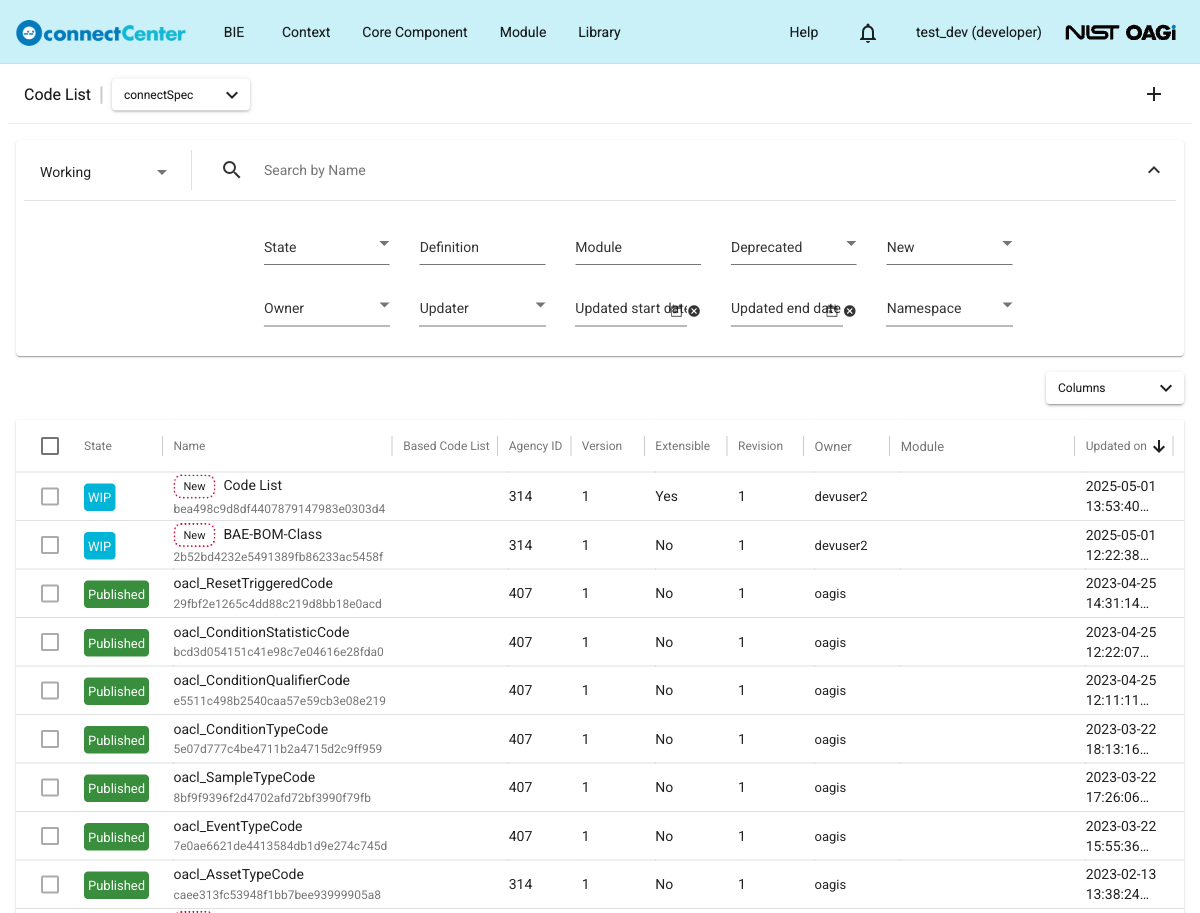
To find a code list needed to work on, select "View/Edit Code List" under the "Core Component" menu on the top of connectCenter pages. The "Code List" page is open that contains a table listing all code lists in a particular branch. To manage developer code lists, ensure that "Working" is selected in the "Branch" selector. Use the search filters on the top of the table to find the desired code list. All filters on the Code List page have the same meaning as those described in How to Search and Filter for a Core Component, except that some filters do not exist on the Code List page and the search bar is labeled "Search by Name" instead of "Search by DEN". The CC Specification does not have Code List as one of the Registry Classes and hence Code List does not have a DEN specification. The name of a code list is a free form text.
View detail of a code list
To view code list detail:
-
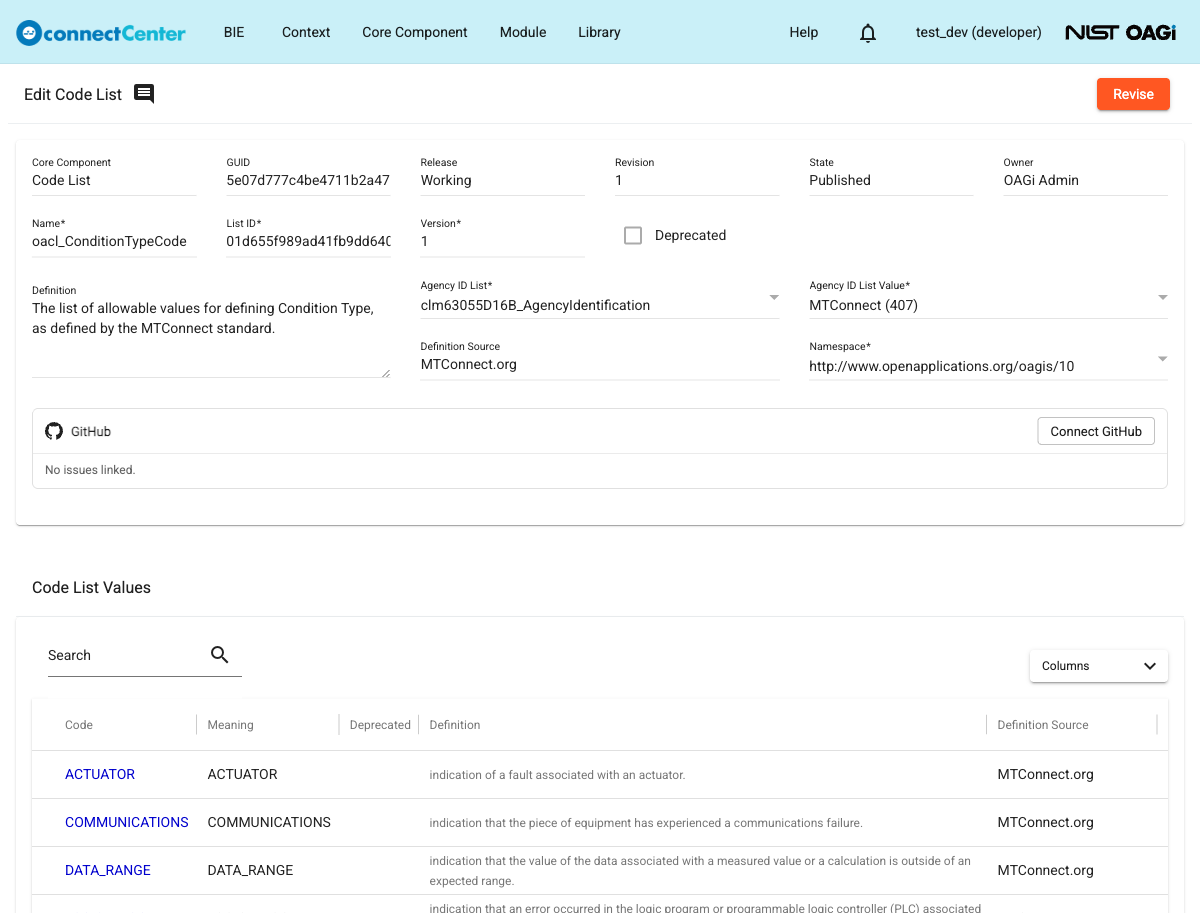
Click on the code list name to open the "Edit Code List" page.
noteClicking somewhere else on a code list entry will display its textual definition.
Create a new code list
To create a brand-new code list:
-
Open the "Code List" page by selecting "View/Edit Code List" under the "Core Component" menu on the top of connectCenter pages.
-
Ensure that "Working" is selected in the "Branch" selector.
-
Click the plus (+) button (tooltip "New Code List") at the top-right of the page. A new code list is created immediately in the WIP state with the default name "Code List", and its "Edit Code List" page opens.
-
Detail of the code list can be updated including add/change code list values.
Edit detail of a brand-new code list
This section describes code list editing when its revision number is 1.
-
Make sure you are on the Working branch. Open the "Edit Code List" page according to View detail of a code list. The code list has to be in the WIP state, and the current user has to be the owner to be editable. The fields in the detail pane may be updated as follows.
-
"Name". It is the name of the code list. The value should be a space-separated set of words. Acronyms and plural words should be avoided. "Name" is required.
-
"List ID". This is a free form text representing the external/global identifier of the code list. It is defaulted with a uniquely generated GUID, but it can be changed. "List ID" is required.
-
"Agency ID List" and "Agency ID List Value". The combination of these two fields represents an organization that owns and manages the code list. Select an Agency ID List from the "Agency ID List" drop-down and one of its values from the "Agency ID List Value" drop-down. If there is no desired agency ID value in the list, revise the developer Agency ID List and add a new value. These two fields are required.
-
"Version". This field is a freeform text representing the version of the code list. The system will validate that the combination of "List ID", "Agency ID List Value", and "Version" is unique in the branch data. "Version" is required.
-
"Namespace". Select a standard namespace from the drop-down list. See the Namespace Management section to create a standard namespace if needed or how namespaces may be used in connectCenter. "Namespace" is required; the "Update" action fails with a "Namespace is required" message if none is selected.
-
"Definition". Specify the description of the code list. "Definition" is optional, but a warning is given if none is specified.
-
"Definition Source". Specify the source of the definition. This is typically a URI, but the field is free form text. "Definition Source" is optional.
-
"Deprecated". The "Deprecated" checkbox is only applicable when the code list revision is higher than 1. Therefore, the field is locked.
-
-
Click the "Update" button at the top right to save changes.
-
The developer may also want to perform these other actions on the code list:
Add a brand-new code list value to the code list
A code list value can be added to a code list that is in the WIP state and is owned by the current user.
-
In the "Code List Values" section of the "Edit Code List" page, click the "Add" button. The button is enabled once the required fields of the code list ("Name", "List ID", "Agency ID List Value", and "Version") are filled.
-
The "Add Code List Value" dialog pops up where the following fields can be edited.
-
"Code". The code value to be used in the message instance. "Code" is required and must be unique within the code list.
-
"Meaning". Short name or short description of the code value. "Meaning" is required.
-
"Definition". Long description of the code value. "Definition" is optional.
-
"Definition Source". The source of the definition. This can be any text but usually a URI is specified. It is optional.
-
"Deprecated". The checkbox is disabled when a code value is newly added.
-
For example, "Code" is "YYYY-MM-DDThh:mm:ssZ", "Meaning" is "UTC Date and Time", "Definition" is "ISO 8601 Date and Time extended format: YYYY-MM-DDThh:mm:ssZ with optional fraction of second allowed (YYYY-MM-DDThh:mm:ss,ssZ)".
-
-
Click the "Add" button at the bottom of the dialog. To get out of the dialog without adding the code value, hit the ESC button or click outside of the dialog.
-
Click the "Update" button at the top of the page.
Remove a brand-new code list value from the code list
A code list value can be removed from a code list only when it is newly added to a brand-new code list or to a revised code list. The code list must be in the WIP state and owned by the current user.
-
In the "Code List Values" table on the "Edit Code List" page, click the checkboxes in front of one or more code list values intended to be removed. Only removable code list values have their checkboxes enabled.
-
Click the "Remove" button next to the "Add" button in the "Code List Values" section.
-
A confirmation dialog is displayed. Confirm or cancel the removal request.
-
Click the "Update" button at the top of the page.
Edit detail of a brand-new code list value
This section describes the case when the code list value is brand-new, i.e., a code list value added to a revision 1 code list (brand-new code list) or to a revised code list (revision number more than 1). The code list must be in the WIP state and owned by the current user. To edit the detail of a code list value:
-
In the "Code List Values" table on the "Edit Code List" page, click on the row of the code list value to be updated.
-
The "Edit Code List Value" dialog is open. Detail of the code list value can be updated as described in Add a brand-new code list value to the code list.
-
Click the "Save" button at the bottom of the dialog. To get out of the dialog without saving the changes, hit the ESC button or click outside of the dialog.
-
Click the "Update" button at the top of the page.
Revise a code list
A developer code list in the Published state can be revised. The current user does not have to be the owner of the code list; upon revising, the ownership is transferred to the revising developer. To revise a code list:
-
Make sure you are on the Working branch. Open the "Edit Code List" page of a code list in the Published state.
-
Click the "Revise" button at the top-right corner of the page and confirm in the "Revise this code list?" dialog.
-
The "Edit Code List" page is refreshed with the code list whose revision number is incremented by 1. The "Version" field is automatically suffixed with "_New" (e.g. "1" becomes "1_New") as a reminder to set a new version.
-
Detail of the code list can be updated including add/change code list values.
Edit detail of a revised code list
This section describes code list editing when its revision number is 2 or more.
-
Open the "Edit Code List" page according to View detail of a code list. The code list has to be in the WIP state, and the current user has to be the owner to be editable. The fields in the detail pane may be updated as follows:
-
"Name". It is the name of the code list. The field is locked and not editable.
-
"List ID". This is a free form text representing the external/global identifier of the code list. The field is locked, and change is not allowed.
-
"Agency ID List" and "Agency ID List Value". The combination of these two fields represents an organization that owns and manages the code list. These fields are locked, and change is not allowed.
-
"Version". This field is a freeform text representing the version of the code list. The system will validate that the combination of "List ID", "Agency ID List Value", and "Version" is unique in the branch data. "Version" is required and the field can be changed.
-
"Namespace". The field is locked and cannot be changed.
-
"Definition". Specify the description of the code list. "Definition" is optional but a warning is given if none is specified.
-
"Definition Source". Specify the source of the definition. This is typically a URI, but the field accepts a free form text. "Definition Source" is optional.
-
"Deprecated". The deprecated checkbox allows the code list to be marked for deprecation.
-
-
Click the "Update" button at the top-right of the page to save changes.
-
The developer may also want to perform these other actions on the code list:
Revise detail of a code list value
This section describes the case when the code list value has existed since the previous revision of the code list. To revise the detail of a code list value:
-
In the "Code List Values" table on the "Edit Code List" page of a code list with revision number 2 or more, click on the row of the code list value to be updated.
-
The "Edit Code List Value" dialog is open. Detail of the code list value can be updated as follows.
-
"Code". Change is not allowed.
-
"Meaning". Change is allowed and the field is mandatory.
-
"Definition". Long description of the code value. "Definition" is optional.
-
"Definition Source". The source of the definition. This can be any text but usually a URI is specified. It is optional.
-
"Deprecated". Check the checkbox to deprecate the code list value.
-
-
Click the "Save" button at the bottom of the dialog. To get out of the dialog without saving the changes, hit the ESC button or click outside of the dialog.
-
Click the "Update" button at the top of the page.
Delete a brand-new code list
A code list with revision #1 can be deleted. Doing so will put the code list into the Deleted state. This signifies that the owner of the deleted code list no longer wants to use it. This suggests that if the code list is used by another developer in another CC, he/she should consider using another code list. It is recommended that the owner documents the reason for deletion in the "Definition" field before deleting. Other developers (or the owner himself) can however restore the code list - see Restore a deleted code list. To delete a code list:
-
Go to the "Code List" page by clicking the "View/Edit Code List" menu item under the "Core Component" menu. Find one or more code lists to delete. Make sure you are on the Working branch. See Find a code list for help in locating a code list.
-
There are two ways to delete a code list:
-
Delete one or more code lists simultaneously.
-
Check the checkbox in front of the code lists that are in the WIP state, have revision 1, and are owned by the current developer.
-
A trash icon (tooltip "Delete") is displayed at the top-right corner of the page.
-
Click the trash icon.
-
-
Delete a code list individually:
- Click the code list name to open its detail page and click the "Delete" button at the top-right corner of the page.
-
-
Confirm (or cancel) deletion on the pop-up dialog.
Restore a deleted code list
Once a code list has been deleted, the ownership is relinquished from the current owner. Any other developer can restore the code list to the WIP state and take the ownership. To restore a code list:
-
Go to the "Code List" page by clicking the "View/Edit Code List" menu item under the "Core Component" menu. Find one or more code lists to restore from deletion. See Find a code list for help in locating a code list. There are two ways to restore a code list.
-
Restore one or more code lists simultaneously (owned code lists only):
-
Check the checkbox in front of the code lists that are in the Deleted state.
-
A restore icon (tooltip "Restore") is displayed at the top-right corner of the page.
-
Click the icon.
-
-
Restore a code list individually:
- Click on the name of a deleted code list to open its detail page and click the "Restore" button at the top-right corner of the page. This works for any developer, not just the previous owner.
-
-
Confirm (or cancel) restoration on the pop-up dialog.
Cancel a code list revision
The developer who is the owner of a code list being revised can cancel the revision. In this case, all changes to the code list are discarded. Code list detail and its owner are rolled back to the pre-revised state. To cancel a code list revision:
-
Go to the "Code List" page by clicking the "View/Edit Code List" menu item under the "Core Component" menu. Find the code list to cancel its revision. Make sure you are on the Working branch. See Find a code list for help in locating a code list.
-
Click on the name of the code list to open its detail page. The current user has to be the owner of the code list and the code list has to be in the WIP state with a revision number greater than 1.
-
Click the "Cancel" button at the top-right of the page.
-
Confirm (or cancel) the revision cancellation.
Change a code list state
The section covers the toggling between the WIP, Draft, and Candidate states of the code list. For the detailed meaning of these and other states, see Change a CC state. The current user has to be the owner of the code list to toggle between these three states. To change the code list state:
-
Go to the "Code List" page by clicking the "View/Edit Code List" menu item under the "Core Component" menu. Find a code list to work on. Make sure you are on the Working branch. See Find a code list for help in locating a code list.
-
Click on the name of the code list to work on.
-
Depending on the current state of the code list, click either the "Move to Draft", "Move to Candidate", or "Back to WIP" button at the top-right corner of the page.
-
Confirm (or cancel) the state change.
Transfer ownership of a code list
To let another developer make changes to a code list, the current owner has to transfer ownership of the code list to another developer. Developer code lists can be transferred only to another developer, and only while the code list is in the WIP state. To transfer ownership:
-
Go to the "Code List" page by clicking the "View/Edit Code List" menu item under the "Core Component" menu. Find a code list to transfer ownership. Make sure you are on the Working branch. See Find a code list for help in locating a code list.
-
Click the transfer icon (icon with two opposite arrows) next to the owner of the code list.
-
A dialog is displayed to select a developer. Use the filter on the top to find the desired developer and check the checkbox in front of it.
-
Click the "Transfer" button.