BCCP Management
Find a BCCP
See Search and Browse CC Library to find the BCCP needed.
To find where a BCCP is used, use the "Where Used" function instead of the list page. Open a Core Component detail page, click the ellipsis next to the target BCCP node, and choose "Where Used". The returned dialog lists the ACCs that reference that BCCP.
View detail of a BCCP
Find a BCCP. Click on the BCCP DEN after the desired BCCP is found to open the BCCP detail page. To understand the detail of the BCCP, see Quick reference to different types of CCs.
You can open a BCCP detail page from within another Core Component tree. On any BCCP node (regular-green font node), click on the ellipsis next to the node and select "Open in new tab".
Create a new BCCP
-
If you are not already on, open the "Core Component" page by clicking the "View/Edit Core Component" menu item under the "Core Component" menu at the top of the page. Make sure the Working branch is selected in the "Branch" selector on the top-left; the create button is available to developers only on the Working branch.
-
Click the plus (+) button near the top-right corner of the page.
-
Select "BCCP".
-
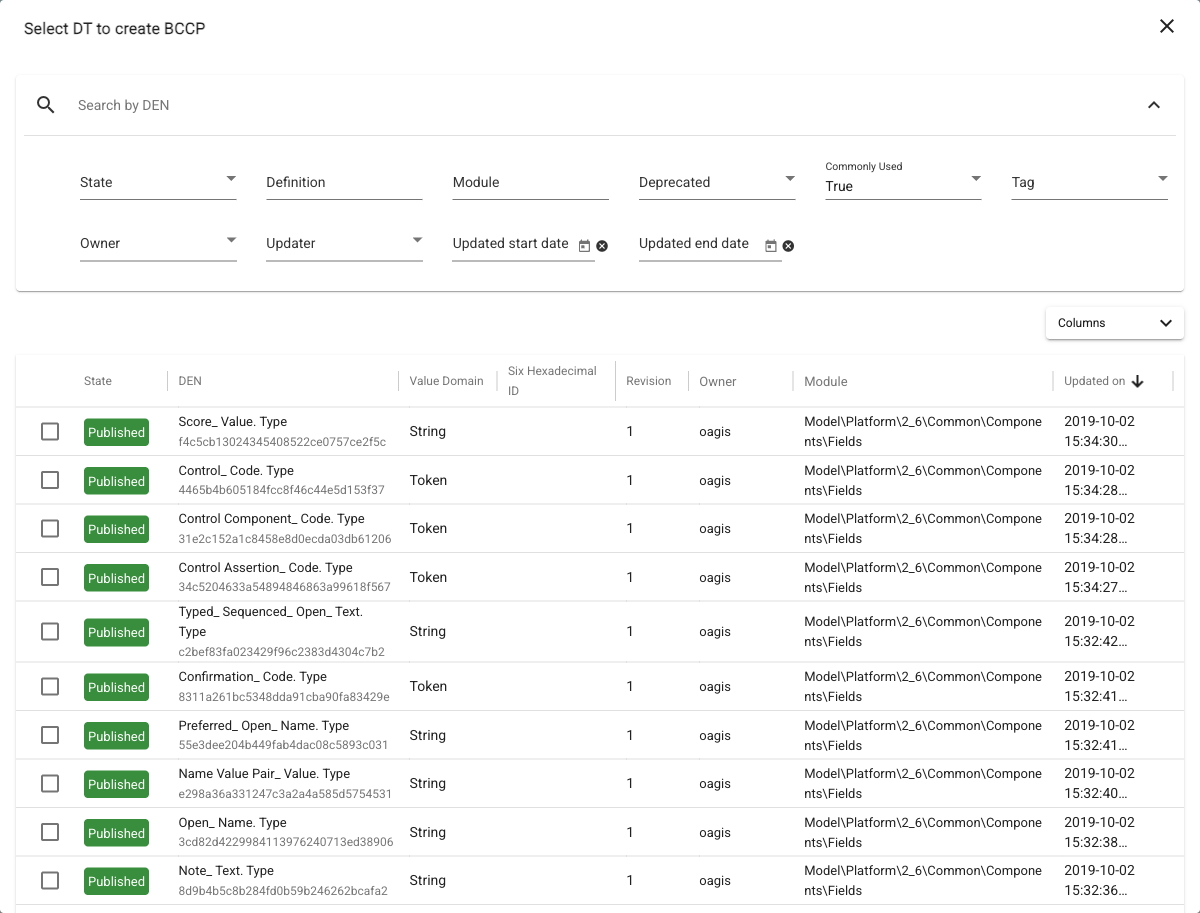
The "Select DT to create BCCP" dialog opens. The "Commonly Used" filter is set to "True" by default, so only commonly used BDTs are listed; clear the filter or use the other search filters to find other DTs. For explanation about different types of BDTs in connectCenter see Types of BDTs in connectCenter.
-
Check the checkbox in front of the desired BDT and click the "Create" button. If the selected DT is deprecated, a confirmation dialog asks whether to proceed anyway.
-
A new BCCP is created with revision #1. Its detail page is open with default values populated ("Property Term" is prefilled with the placeholder "Property Term"). The new BCCP is in the WIP state. See also Edit detail of a BCCP.
Edit detail of a BCCP
This section describes BCCP editing when its revision number is 1.
-
Open the BCCP detail page according to View detail of a BCCP. The BCCP has to be in the WIP state and owned by the current user to be editable. The following fields can be updated.
-
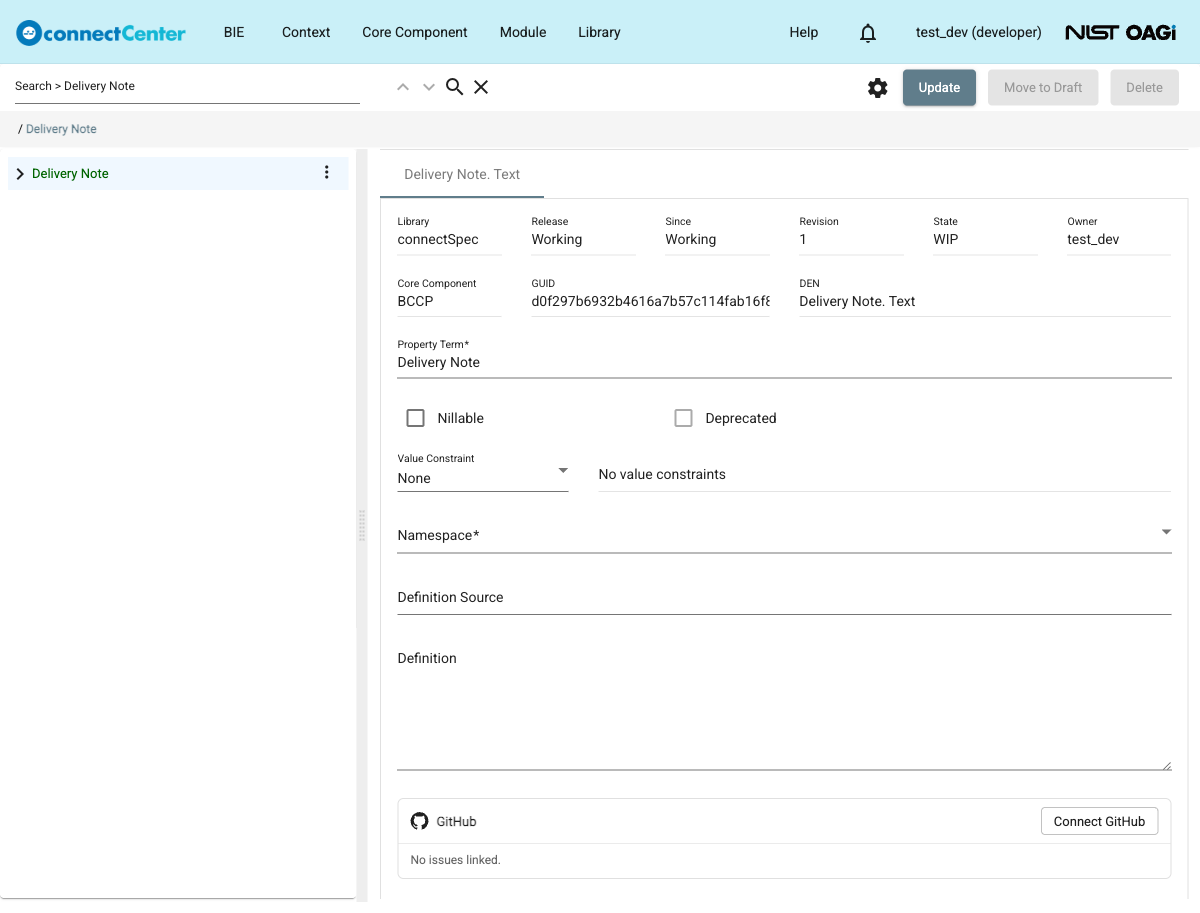
"Property Term". Property Term should be space-separated words, each with initial letter capitalized. Acronyms and plurals should be avoided. For connectSpec, it should be what one would expect to see in the expression, except the word "Identifier" which should always be spelled out. For example, the name of a street should have a property term "Street Name", which would yield "Street Name. Name" as DEN. In other words, the data type term "Name" is not used in the expression generation. Naming pattern in connectSpec has the data type term in the property term except when the data type term is Text (e.g., DEN of a description is "Description. Text" not "Description Text. Text"). "Property Term" is required.
-
"Nillable". Nillable specifies whether a null value can be assigned in the instance data. It is defaulted to false (unchecked).
-
"Deprecated". Since this is a brand new BCCP, "Deprecated" is locked.
-
"Value Constraint". Select "Fixed Value" or "Default Value" in the drop-down (or "None") and specify the value in the adjacent text field. A fixed value and "Nillable" are meant to be mutually exclusive, i.e., "Nillable" should not be true if there is a fixed value and vice versa. "Value Constraint" is optional.
-
"Namespace". Select a standard namespace from the drop-down list. See the Namespace Management section to create a standard namespace if needed or how namespaces may be used in connectCenter. "Namespace" is required; clicking "Update" without a namespace is rejected with a "Namespace is required" message.
-
"Definition Source". Specify the source of the definition. This is typically a URI, but the field accepts free form text. "Definition Source" is optional.
-
"Definition". Specify the description of the BCCP. "Definition" is optional but a warning is given if none is specified.
-
-
Click the "Update" button at the top right to save changes. If the "Definition" field is empty, the "Update without definitions." dialog asks for confirmation; click "Update anyway" to save.
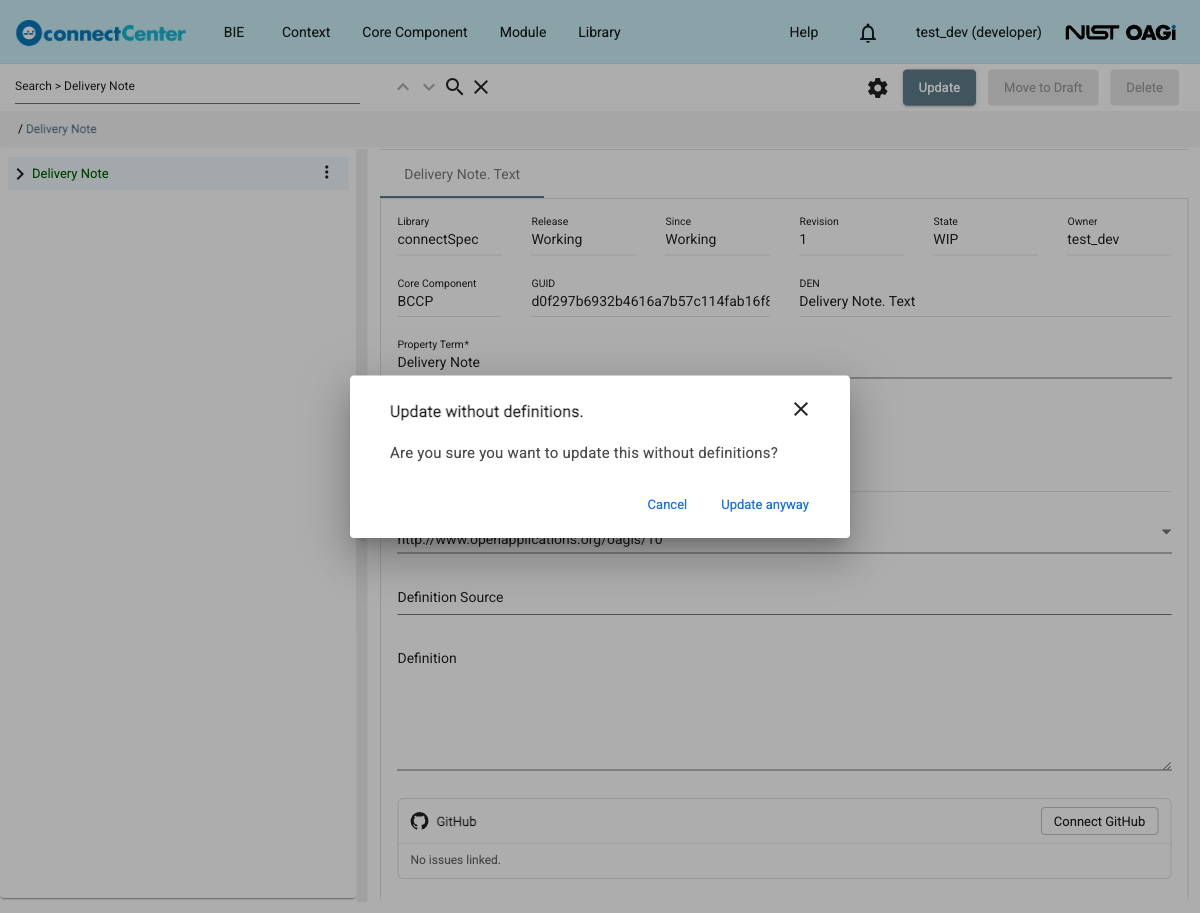
The screenshot below shows a brand-new BCCP in the WIP state. The "Move to Draft" and "Delete" buttons at the top right become available once the unsaved changes are saved with "Update".
To change the DT associated with the BCCP, click the ellipsis next to the root node of the BCCP tree and select "Change DT".
Delete a newly created BCCP
See Delete a newly created CC.
Restore a deleted BCCP
See Restore a deleted CC.
Revise a BCCP
A BCCP in the Published state can be revised where certain changes can be made. Any developer user can revise a published BCCP. He/she does not have to be its owner; upon revising, the ownership is transferred to the revising developer. To do that:
-
Find a BCCP in the Working branch.
-
Click the "Revise" button at the top-right corner of the page and confirm in the "Revise this BCCP?" dialog. The BCCP goes into the WIP state and its revision number increases by 1.
-
The following fields can be updated ("Property Term" and "Namespace" are locked during a revision).
-
"Nillable". It can only be updated from false (unchecked) to true (checked), and it is locked when the previous revision has a fixed value.
-
"Deprecated". It can only be updated from false (unchecked) to true (checked).
-
"Value Constraint". Select "Fixed Value" or "Default Value" in the drop-down and specify the value in the adjacent field. The "Fixed Value" option is not selectable when the previous revision is nillable, and a fixed value set in the previous revision cannot be changed. "Value Constraint" is optional.
-
"Definition Source". Specify the source of the definition. This is typically a URI, but the field accepts free form text. "Definition Source" is optional.
-
"Definition". Specify the description of the BCCP. "Definition" is optional but a warning is given if none is specified.
-
The associated BDT can be changed with the "Change DT" context-menu item on the root node.
-
-
Click the "Update" button at the top right to save changes.
Cancel a BCCP revision
See Cancel a CC revision.
Change BCCP states
See Change CC states.
Transfer ownership of a BCCP
See Transfer ownership of a CC.