Manage End User Code Lists
End users can access code list management to create code lists to be used for restricting fields in an End User Core Component and BIE. Code list management has its own page, opened with the "View/Edit Code List" menu item that appears under both the "Core Component" menu and the "BIE" menu. When the page is opened from the "BIE" menu, it uses the same branch selection as the other BIE pages. End-user code lists can be managed when a published release branch is selected in the Branch filter.
There are two ways to create a code list. The first way is to base it on (i.e., derive it from) a developer code list, where both restrictions and extensions are allowed (an end-user code list cannot be based on another end-user code list). This is important because if a Core Component (connectSpec Model) already uses a specific code list, such as a Language Code, only that code list or a code list derived from it can be used in the BIE restriction.
The other way is to create a brand-new code list. Such a code list can be used in a BIE whose based CC is typed to the generic code type. Most connectSpec CC fields use the generic code type.
Developers also create and manage code lists, but only on the Working branch; they cannot derive a code list from another one, and the "Uplift Code List" menu item is disabled for them.
Find a code list
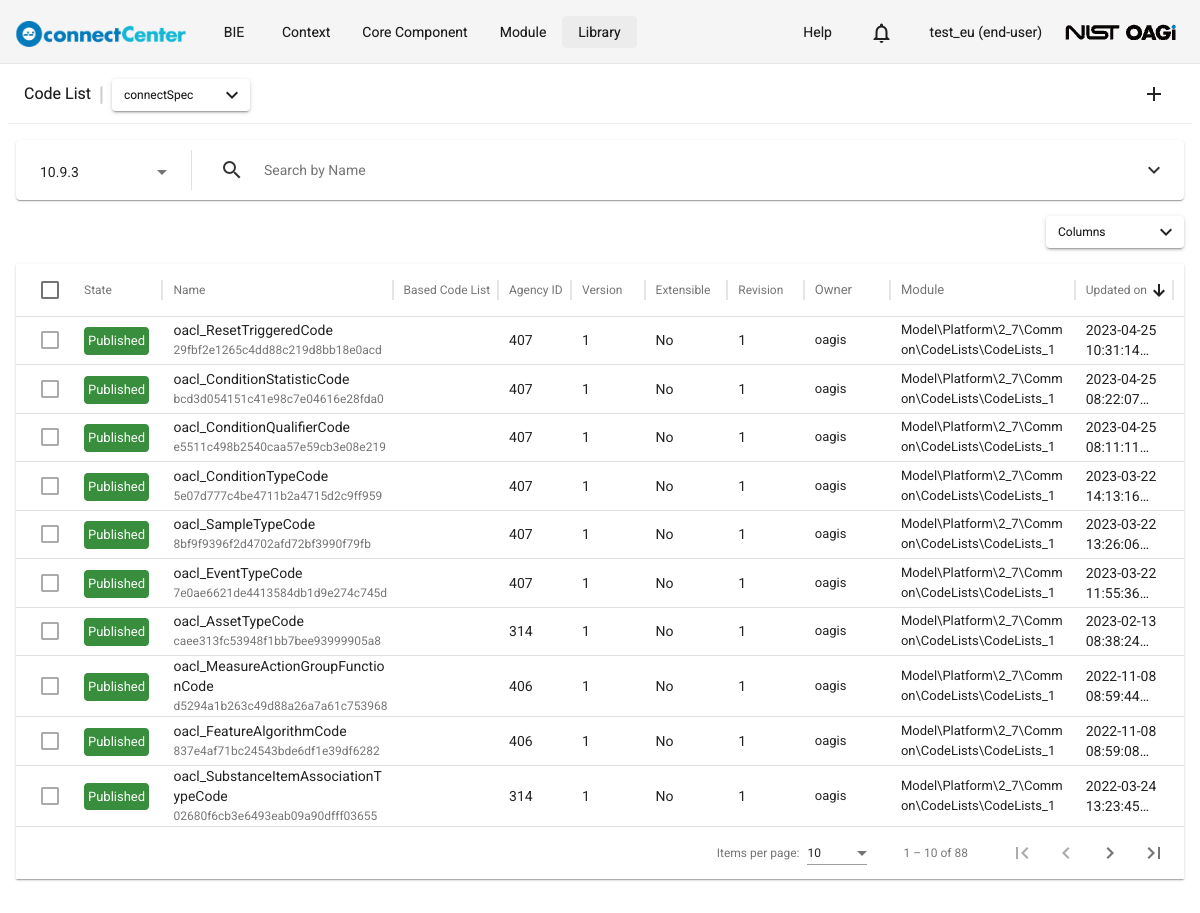
Open the "Code List" page by choosing "View/Edit Code List" from either the "Core Component" menu or the "BIE" menu. Make sure that the desired published release branch is selected in the Branch filter. Then use the "Search by Name" field and the advanced search filters (expand them with the chevron at the right end of the search bar) to locate the desired code list. The "Columns" dropdown above the table lets you choose which columns are displayed.
View detail of a code list
Find a code list. Click the code list name in the table to open its "Edit Code List" detail page. The speech-bubble icon next to the page title opens a Comments sidebar that supports threaded comments and replies.
Create a brand-new code list
Open the "Code List" page from either the "Core Component" menu or the "BIE" menu. Make sure that the desired published release branch is selected; the add ("+") icon button (tooltip "New Code List") at the top-right corner of the page appears for end users only when a published branch is selected. Click the add icon button. The code list is created immediately — with the default name "Code List", version "1", a generated GUID as its List ID, and the default end-user agency ID list value — and its "Edit Code List" page opens.
Edit detail of a brand-new code list
Open the code list detail of a code list in the WIP state and that is owned by the current end user. The fields in the detail pane may be updated as follows.
-
The following fields accept free-form texts: Name, List ID, Version, Definition, Remark, and Definition Source. Remark, in particular, exists only in the end-user code list. It may be used to capture notes during development that is not wanted (to be published) in the Definition, e.g., "Need to go over this with the team". It is important to note that the system validates the combination of List ID, the agency ID (from the Agency ID List Value), and Version to be unique in the release branch, to which this code list belongs; a violation is reported on update with the message "Another code list with the triplet (ListID, AgencyID, Version) already exist!". If another code list with the same name already exists, a "Duplicated Properties" warning is shown instead, which can be dismissed with "Update anyway".
-
Namespace. Select a non-standard namespace from the dropdown list (end users are offered only non-standard namespaces). If the dropdown is empty, a non-standard namespace needs to be created first.
-
Agency ID List and Agency ID List Value. These two fields represent an organization that owns and manages the code list. On a published branch, the Agency ID List dropdown offers only agency ID lists in the Published or Production state — created either by a developer or by an end user — that belong to the same release as the code list being edited. Select an agency ID list and then select the agency ID list value.
-
Version. This field is a freeform text representing the version of the code list. The system will validate the combination of List ID, the agency ID (from the Agency ID List Value), and Version is unique in the release branch data. Version is required.
-
Definition. Specify the description of the code list. Definition is optional, but if none is specified, an "Empty Definition" warning is given on update, which can be dismissed with "Update Anyway".
-
Definition Source. Specify the source of the definition. This is typically a URI, but the field is free form text. Definition Source is optional.
-
Deprecated. The Deprecated checkbox is only applicable when the code list revision is higher than 1. Therefore, the field is locked.
-
Click the "Update" button at the top right (or press Ctrl/Cmd+S) to save changes. Changes to the code list values are also saved to the server only when "Update" is clicked.
-
The end user may also want to perform these other actions on the code list:
Create a Code List Based on Another
This function allows a code list to be extended and restricted based on a published developer code list. Only end users are allowed to create a code list based on another. Creating such a code list makes the code list available for value domain restriction in the BIE, when the CC from which the BIE is derived uses the based code list. For example, if a "Language Code" CC field has been assigned the "oacl_LanguageCode" code list, the user can only restrict the "Language Code" BIE to that code list or to one of the code lists derived from it. See the third table in Restrict a BIE. To create a code list based on another developer code list:
-
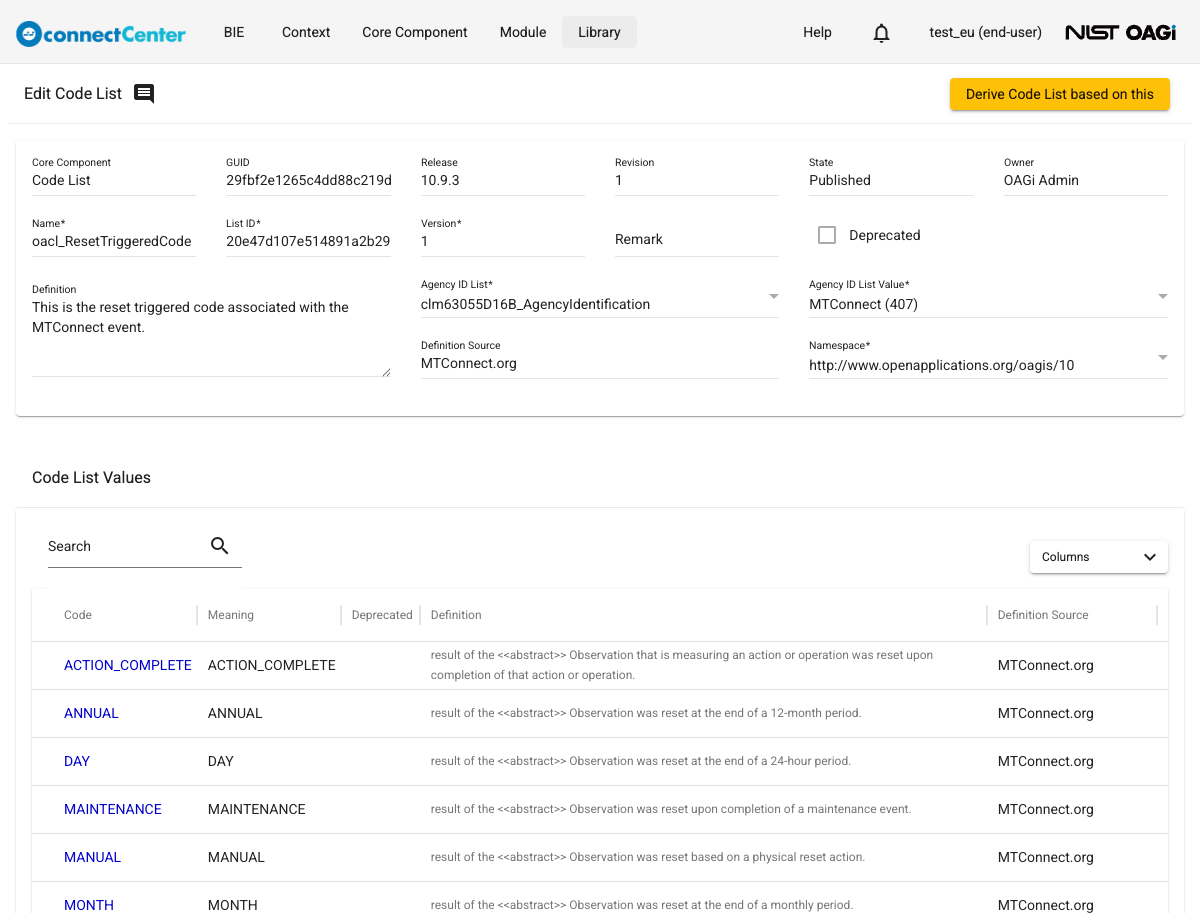
Open the detail page of the desired developer Code list to be used as a base.
-
Click the "Derive Code List based on this" button at the top-right of the page.
-
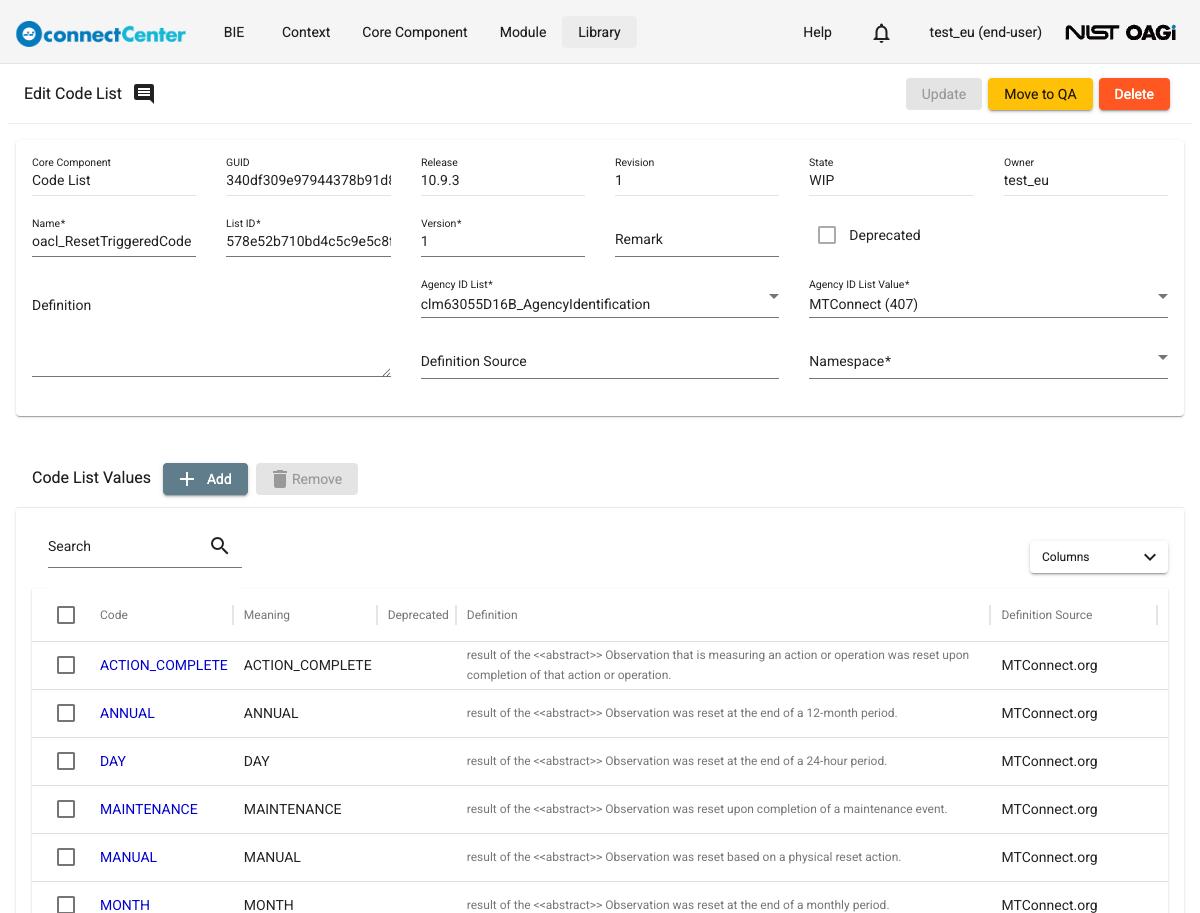
The derived code list is created immediately and its "Edit Code List" page opens with the "Update", "Move to QA", and "Delete" buttons. All the code list values from the base code list are copied to the derived code list. These values are considered as brand-new values added by the user and can be changed according to Edit detail of a brand-new code list value. They can be also removed according to Remove a brand-new code list value from the code list.
Edit detail of a Code List derived from another
This section describes code list editing when the code list is derived from another code list. See View detail of a code list to open the "Edit Code List" page. The code list has to be in the WIP state and owned by the current user to be editable. The fields in the detail pane may be updated as follows.
-
Based Code List. The name of the code list that the current code list is derived from. This field is locked and cannot be changed.
-
Name. Name of the code list. By default, the name is the same as the previous field and it is recommended to be changed. The value should be space separated set of words. Acronyms and plural words should be avoided. Name is required.
-
Change the textual content of any of the following fields: List ID, Version, Namespace, Definition, Definition Source and Remark. See Edit detail of a brand-new code list.
-
Select an Agency ID List and an Agency ID List Value in the corresponding fields. See Edit detail of a brand-new code list for more information about these fields.
-
The Deprecated checkboxes are unchecked and locked. See Edit detail of a brand-new code list.
-
Click the "Update" button at the top right to save changes.
-
The values copied from the base code list are treated as brand-new values, so they can be edited and removed just like values the end user added. The end user may perform these other actions on the code list:
Add a brand-new code list value to the code list
Click the "Add" button in the "Code List Values" section of the "Edit Code List" page; the "Add Code List Value" dialog opens. The steps are the same as in Add a brand-new code list value to the code list in the developer guide. A Code that already exists in the list is rejected with an "already exist" message. The added values are saved to the server when the code list's "Update" button is clicked.
Remove a brand-new code list value from the code list
Check the checkboxes of the values in the "Code List Values" table and click the "Remove" button, then confirm in the "Remove Code List Value?" dialog. The steps are the same as in Remove a brand-new code list value from the code list in the developer guide.
Edit detail of a brand-new code list value
Click the value's Code in the "Code List Values" table to open the "Edit Code List Value" dialog, change the fields, and click "Save". The steps are the same as in Edit detail of a brand-new code list value in the developer guide.
Amend a code list
An end user code list in the Production state can be amended. The current user does not have to be the owner of the code list (any end user can amend an end-user code list), but note that amending transfers ownership of the code list to the user who amends it. To amend a code list:
-
Make sure you are on a published release branch. Open the Edit Code List page of a code list in the Production state.
-
Click the "Amend" button at the top-right corner of the page.
-
Confirm in the "Amend this code list?" dialog by clicking "Amend".
-
The "Edit Code List" page is refreshed with the code list whose revision number is incremented by 1. The code list is now in the WIP state, owned by you, and its Version is automatically suffixed with "_New".
-
Detail of the code list can be updated including add/change code list values.
Amend Vs. Revise: ‘Revise’ is the term used with developer CCs. ‘Amend’ is the term used with end-user CC. The difference is that there is a snapshot of every revision of a CC such that its whole hierarchical structure can be retrieved. That is not the case for an amendment. Even though there are history records for both cases, history records only capture changes local to the CC and cannot be used to reconstruct the hierarchical snapshot of a CC.
Edit detail of a code list during its amendment
This section describes code list editing when its revision number is 2 or more.
-
Open the "Edit Code List" detail page according to View detail of a code list. The code list has to be in the WIP state, and the current user has to be the owner to be editable. The fields in the detail pane may be updated as follows:
-
The Name, List ID, Agency ID List, Agency ID List Value, and Namespace fields are locked during an amendment.
-
Version, Definition, and Definition Source stay editable.
-
Remark can also be edited. It is an optional free text form field used for providing comments about the code list.
-
The Deprecated checkbox becomes editable, unless the previous revision was already deprecated.
-
-
Click the "Update" button at the top-right of the page to save changes.
-
The end user may also want to perform these other actions on the code list:
Edit detail of a code list value that existed before the amendment
This section is about editing detail of a code list value that existed before an amendment. The detail can be edited in the same way as Revise detail of a code list value in the developer guide.
Delete a brand-new code list
A code list with revision #1 can be deleted. Doing so will put the code list into the Deleted state. This signifies that the owner of the deleted code list no longer wants to use it. This suggests that if the code list is used by another end user in another end user CC or BIE, he/she should consider using another code list. It is recommended that the owner documents the reason for deletion in the Definition field before deleting. Other end users (or the owner himself) can however restore the code list – see Restore a deleted code list. To delete a code list:
-
Go to the "Code List" page by clicking the "View/Edit Code List" menu item under the "Core Component" menu or the "BIE" menu. Find one or more Code Lists to delete. Make sure you are on a published release branch. See Find a code list for help in locating a code list.
-
There are two ways to delete a code list.
-
Delete one or more code lists simultaneously.
-
Check the checkbox in front of the code lists that are in the WIP state, have revision 1, and are owned by the current end user (only such rows are selectable).
-
A trash icon (tooltip "Delete") is displayed at the top-right corner of the page.
-
Click the trash icon and confirm in the "Delete Code List?" (or "Delete Code Lists?") dialog by clicking "Delete anyway".
-
-
Delete a code list individually.
-
Click on the ellipsis in the last column of the code list entry. The code list must be in the WIP state, has revision 1, and is owned by the current end user. Click the "Delete" menu item in the pop-up menu.
-
Alternatively, click the code list name to open its detail page and click the "Delete" button at the top-right corner of the page.
-
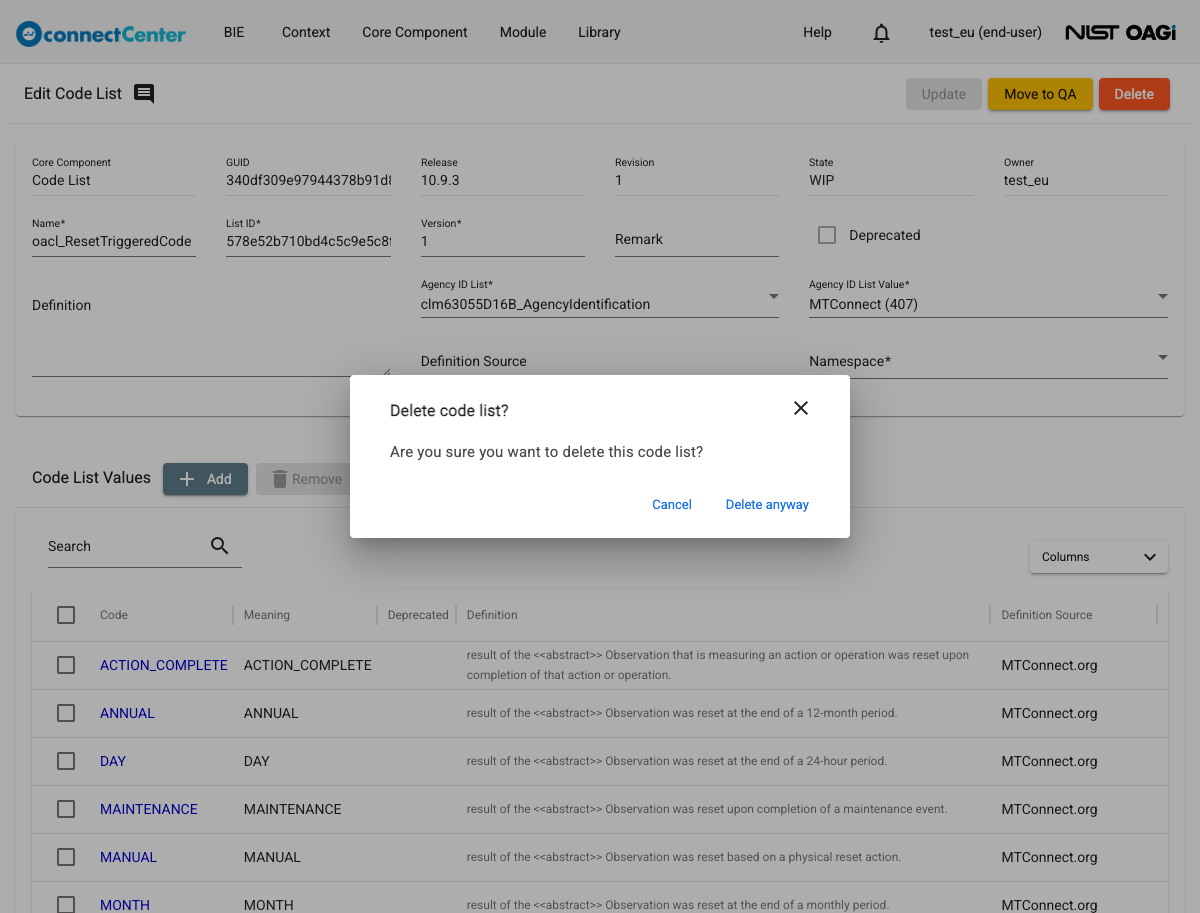
Confirm in the "Delete code list?" dialog by clicking "Delete anyway".
-
-
A code list in the Deleted state can also be permanently removed: check it in the list and click the trash icon with the "Purge" tooltip, then confirm in the "Purge Code List?" dialog by clicking "Purge anyway". A purged code list, its log, and its comments can never be brought back.
Restore a deleted code list
Any end user can restore a deleted end-user code list; restoring puts it back into the WIP state and reassigns ownership to the restoring user. To restore a deleted code list:
-
Go to the "Code List" page by clicking the "View/Edit Code List" menu item under the "Core Component" menu or the "BIE" menu.
-
Make sure you are on a published release branch and find a code list that is in the Deleted state.
-
Click the code list name to open its detail page and click the "Restore" button at the top-right corner, then confirm in the "Restore this code list?" dialog by clicking "Restore". If you are the owner of the deleted code list, you can instead use the "Restore" item in the row's ellipsis menu, or check the row and click the restore icon (tooltip "Restore") at the top-right corner of the page; these list-page shortcuts are available only to the owner.
Cancel a code list amendment
The end user who is the owner of a code list being amended can cancel the amendment. In this case, all changes to the code list are discarded. Code list detail and its owner are rolled back to the pre-amendment state. To cancel a code list amendment:
-
Go to the "Code List" page by clicking the "View/Edit Code List" menu item under the "Core Component" menu or the "BIE" menu. Find the code list whose amendment is to be cancelled. Make sure you are on a published release branch. See Find a code list for help in locating a code list.
-
Click on the name of the code list to open its detail page. The current user has to be the owner of the code list and the code list has to be the WIP state with revision number greater than 1.
-
Click the "Cancel" button at the top-right of the page.
-
Confirm in the "Cancel this amendment?" dialog by clicking "Okay". Note the dialog's warning: all work done in the amendment will be permanently removed and cannot be recovered.
Change a code list state
The section covers the toggling between WIP, QA, and Production states of the code list. For detailed meaning of these and other states, see End user CC states. The current user has to be the owner of the code list to toggle between these three states. To change the code list state:
-
Go to the "Code List" page by clicking the "View/Edit Code List" menu item under the "Core Component" menu or the "BIE" menu. Find a code list to work on. Make sure you are on a published release branch. See Find a code list for help in locating a code list.
-
Click on the name of the code list to work on.
-
Depending on the current state of the code list, click either the "Move to QA", "Move to Production", or "Back to WIP" button at the top-right corner of the page. "Move to QA" is disabled while there are unsaved edits — click "Update" first.
-
Confirm the state change in the "Update state to 'QA'?" (or 'Production'/'WIP') dialog by clicking "Update". When moving to Production, the dialog adds the warning "Once in the Production state it can no longer be changed or discarded." and the confirm button reads "Update anyway".
A state change can be blocked when BIEs that use the code list are in incompatible states; in that case a dialog lists the blocking BIEs together with their owners.
Transfer ownership of a code list
To let another end user make changes to a code list, the current owner has to transfer ownership of the code list to another end user. End-user code lists can be transferred only to another end user, and only while the code list is in the WIP state. To transfer ownership:
-
Go to the "Code List" page by clicking the "View/Edit Code List" menu item under the "Core Component" menu or the "BIE" menu. Find a code list to transfer ownership. Make sure you are on a published release branch. See Find a code list for help in locating a code list.
-
There are two ways to transfer ownership of a code list.
-
Click the transfer icon (icon with two opposite arrows) next to the owner of the code list, or
-
Click on the ellipsis in the last column of the code list to transfer the ownership and select the "Transfer Ownership" menu item in the pop-up menu.
-
-
The "Transfer ownership" dialog is displayed listing end-user accounts. Use the "Search by Login ID" filter on the top to find the desired end user and check the checkbox in front of it.
-
Click the "Transfer" button.
Uplift an end-user code list
Like BIE, each end-user code list is assigned to a particular release. This function allows an end-user code list to be transferred from an older release to a newer release. Only end users have access to the uplift function; the "Uplift Code List" menu item is disabled for developers. To uplift an end-user code list:
-
Select "Uplift Code List" in the "BIE" menu at the top of the page.
-
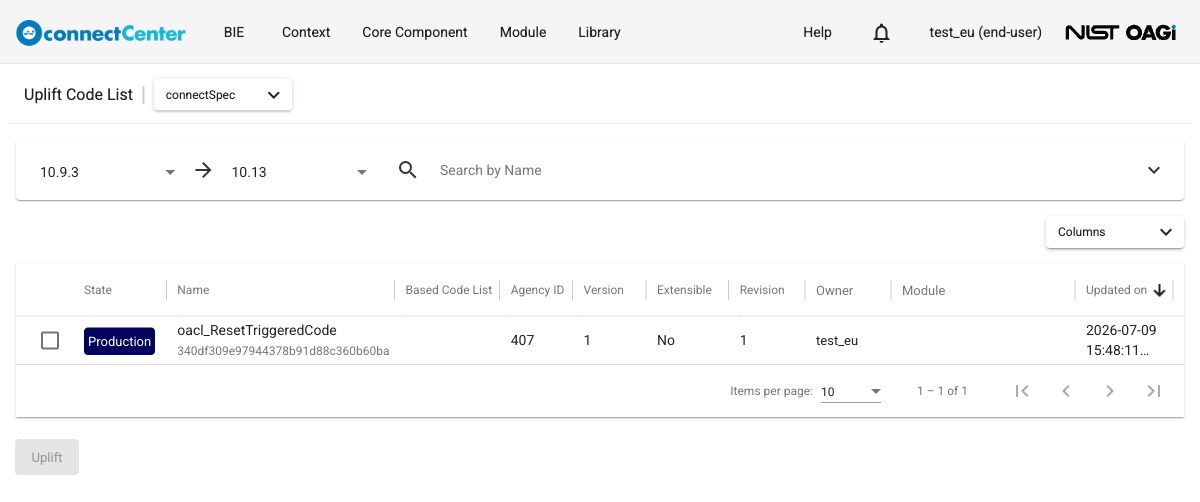
On the returned "Uplift Code List" page:
-
Select a source release in the Source Branch dropdown. All published releases are listed, including the latest one; however, if the latest release is selected, the Target Branch dropdown has nothing to offer (it only lists releases newer than the source) and the "Uplift" button stays disabled.
-
Choose the target release in the Target Branch dropdown; it defaults to the release right after the selected source. The uplifted code list will be associated with this release.
-
Check exactly one source code list in the listing table below (the selection is single-select). The list contains only end-user code lists in the source release selected in the first step. Use the pagination at the bottom or use the Name or other filters on the page to find the desired source code list (all filters on the Code List have the same meaning as those described in How to Search and Filter for a Core Component, except that some filters do not exist on the Code List page and the Code List page has Name instead of DEN). Optionally, click on the name of the code list in the Name column to see all details of the code list.
-
-
Click the "Uplift" button at the bottom of the page (it is enabled once a target branch is set and one code list is checked). An "Uplifted" message appears.
-
The "Edit Code List" page of the uplifted code list is displayed where the user can make further changes. All information is carried from the source code list including the List ID. Their GUIDs are however different. The uplifted code list starts in the WIP state, is owned by the uplifting user, and its Deprecated flag is reset to unchecked.
Note that an end user Code List may be an extension of a developer Code List with additional code list values. The developer Code List, however, might have been revised and include these values in the new release. For a derived code list, the based values of the uplifted code list are taken from the target release's revision of the based developer Code List, so a value that now also exists in the based Code List is carried with the target release's definition rather than duplicated. The user will want to verify whether the code list values added to the developer Code List are semantically the same as those that existed a priori in the end user Code List.