Manage BIE Package
A BIE Package bundles multiple top-level BIEs so that they can be versioned, promoted, and expressed together as a single unit. Like BIEs, BIE Packages have independent states of WIP, QA, and Production, with the available actions depending on the state and on ownership. See BIE States for the meaning of these states.
To reach the list of BIE packages, click the "BIE Package" menu item under the "BIE" menu. BIE packages belong to a library; the library selector next to the "BIE Package" page title determines which library's packages are listed. The page has the "New BIE Package" and "Discard" buttons at the top-right and a table with the State, Branch, Package Name, Version ID, Version Name, Owner, Description, and Updated on columns. The Branch column is derived from the releases of the BIEs the package contains, so a package can span more than one branch.
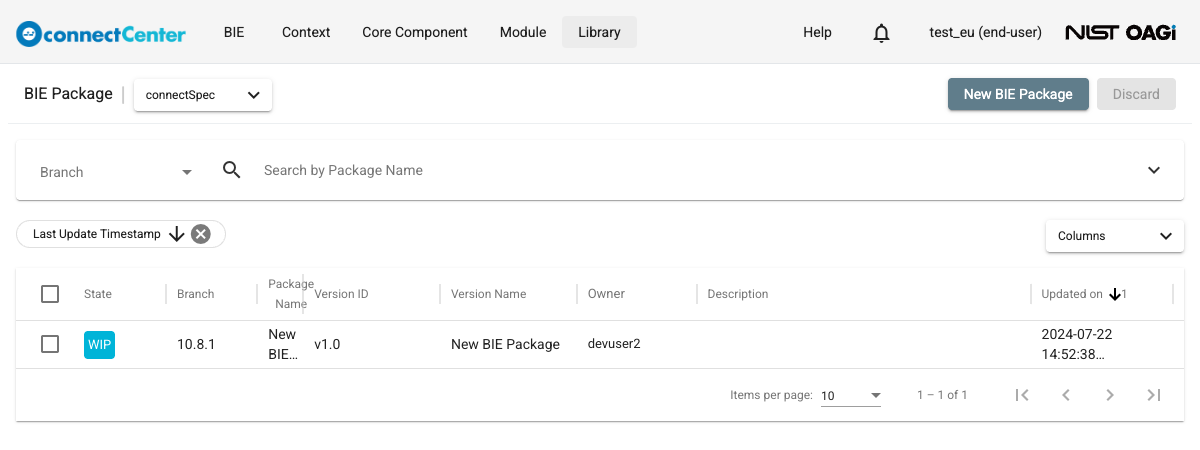
To locate a package, use the "Search by Package Name" bar, the Branch multi-select next to it, or the search filters: State, Version ID, Version Name, Package Description, Owner, Updater, Updated start date, Updated end date, BIE Business Term, BIE Version, and BIE Remark. The last three match against the BIEs contained in the packages. See also How to use the Search field in general and How to use Search Filters.
The table below summarizes the actions available in each BIE package state.
| State | Current Owner | Other Users |
|---|---|---|
| WIP | Edit the package fields. Add, replace, or remove its BIEs. Move it to QA. Generate its schema expressions. Transfer its ownership. Discard it. | View its details read-only. Generate its schema expressions. Copy it. Request an ownership transfer. |
| QA | View its details. Move it back to WIP or advance it to Production. Generate its schema expressions. Copy it. | View its details. Generate its schema expressions. Copy it. |
| Production | View its details. Generate its schema expressions. Revise it. Copy it. | View its details. Generate its schema expressions. Revise it. Copy it. |
Administrators can additionally discard a BIE package and transfer its ownership in any state.
Create a BIE Package
Clicking "New BIE Package" creates the package immediately — there is no separate create form. To create a BIE package:
-
Go to the "BIE Package" page by clicking the "BIE Package" menu item under the "BIE" menu.
-
Make sure the library selector next to the page title shows the library the new package should belong to.
-
Click the "New BIE Package" button located at the top-right of the page.
-
The package is created right away with default values — the Package Name "New BIE Package", the Version ID "v1.0", and an automatically generated Version Name — a "Created" message appears, and the new package's "Edit BIE Package" page opens.
-
Replace the default field values as described in Edit a BIE Package and click the "Update" button.
Edit a BIE Package
To edit a BIE package:
-
Go to the "BIE Package" page by clicking the "BIE Package" menu item under the "BIE" menu.
-
Locate the desired BIE package using the search bar or the search filters, and open its "Edit BIE Package" page by clicking the package name in the Package Name column.
-
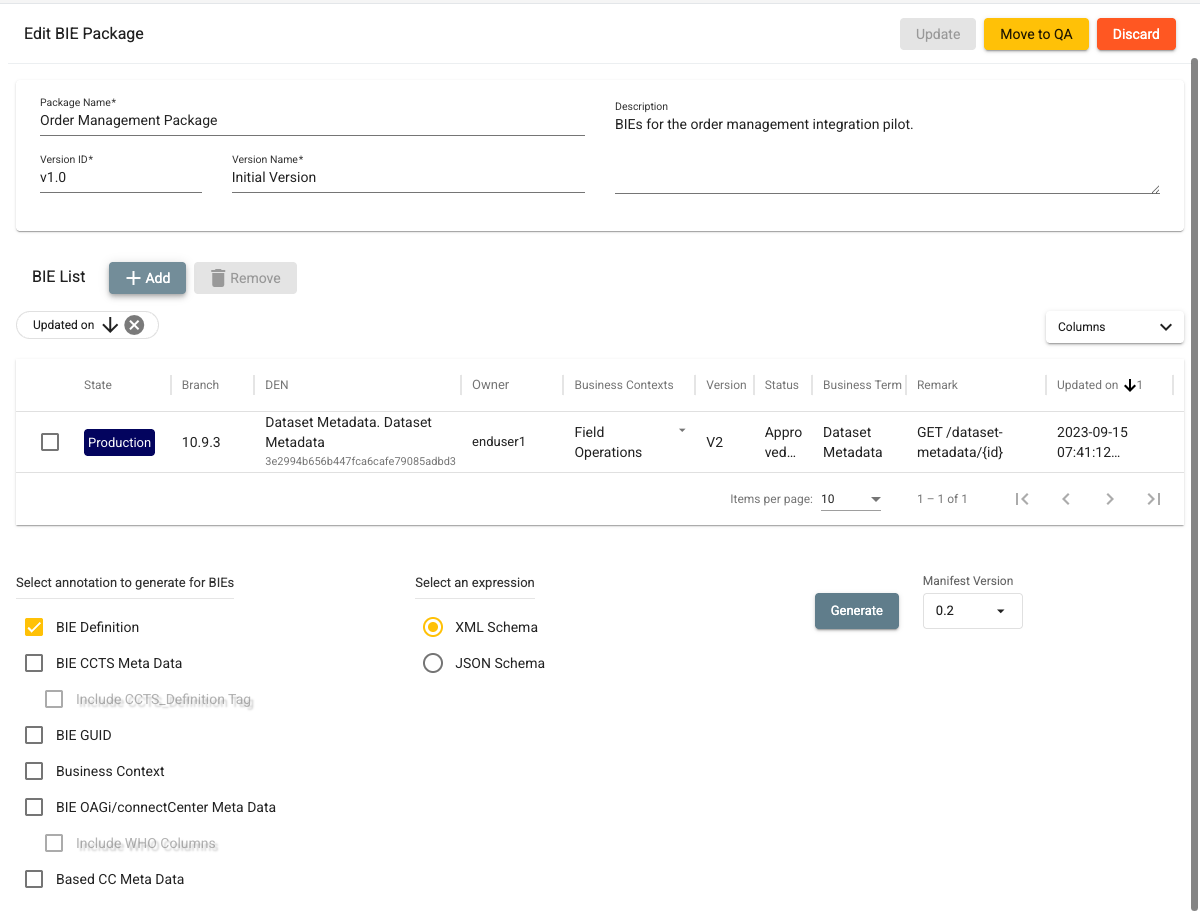
Edit the package fields:
Field Description Package Name The name of the BIE package. Mandatory; up to 200 characters. Version ID The identifier assigned to the package version. Mandatory; up to 100 characters. Version Name The descriptive name of the package version. Mandatory; up to 200 characters. Description A free-form description of the package. The "Update" button stays disabled while this field is empty. Revision Reason Appears directly under Description, but only on a revised package (one that has a prior version). Free-form text capturing the reason for the revision. The combination of Package Name, Version ID, and Version Name must be unique across BIE packages; saving a duplicate combination fails with the message "A BIE package with the same name, version ID, and version name already exists."
-
Click the "Update" button. Pressing Ctrl+S (Cmd+S on macOS) also saves the fields.
The package fields can be edited only while the package is in the WIP state and you are its owner; otherwise all fields are disabled.
Change a BIE Package state
While you own the package, the buttons at the top-right of the "Edit BIE Package" page move it between states: "Move to QA" on a WIP package, and "Back to WIP" or "Move to Production" on a QA package. "Move to QA" is disabled while the package has unsaved field edits — click "Update" first. Each state change asks for confirmation in a dialog such as "Update state to 'QA'?"; click "Update" to confirm.
Revise a BIE Package
A BIE package in the Production state can be revised. Revising creates a new WIP revision chained to the prior version so that its contents can be updated and re-promoted while the prior version remains unchanged. The "Revise" button is shown to every user on a Production package, not only to the owner.
To revise a BIE package:
-
Go to the "BIE Package" page by clicking the "BIE Package" menu item under the "BIE" menu.
-
Locate the BIE package you want to revise. Click on the package name to open its "Edit BIE Package" page. The package must be in the Production state.
-
Click the "Revise" button at the top-right of the page.
-
Confirm the request in the "Revise this BIE Package?" dialog by clicking the "Revise" button.
-
A new revision is created in the WIP state and its "Edit BIE Package" page is opened. The revision copies the Package Name, Version Name, Description, and all the BIEs of the prior version, and connectCenter assigns it a Version ID that differs from the prior version's.
On a revised package, a Revision Reason field appears on the "Edit BIE Package" page directly under the Description field. It starts empty; use it to capture, in free-form text, the reason for this revision, and click the "Update" button to save it. Like the other package fields, it can be edited only while the package is in the WIP state and you are its owner.
In the "BIE List" of a revised package, a BIE that has been deprecated shows a "Deprecated" badge; hover over it to see the deprecation reason and remark.
Copy a BIE Package
Any user can copy any BIE package, in any state:
-
On the "BIE Package" page, click the vertical-ellipsis button on the desired package row.
-
Click "Copy" in the context menu that appears.
-
Confirm the request in the "Copy BIE Package?" dialog by clicking the "Copy" button.
The copy request creates a new BIE package in the WIP state owned by you, containing the BIEs of the source package.
Transfer ownership of a BIE Package
While a package is in the WIP state, its owner can transfer it to another user:
-
On the "BIE Package" page, either click the transfer icon (two opposite horizontal arrows) next to the owner's name in the Owner column, or click the vertical-ellipsis button on the package row and choose "Transfer Ownership".
-
In the dialog that opens, select the new owner and confirm the transfer.
A user who does not own the package sees a "Request Ownership Transfer" item in the row's context menu instead, which sends an email to the owner; it is available when email transmission is enabled in the application settings.
Discard a BIE Package
There are three methods for discarding a BIE package. The first one is:
-
Go to the "BIE Package" page by clicking the "BIE Package" menu item under the "BIE" menu.
-
Locate the BIE package you want to discard using the search bar or the search filters, and click the checkbox on the desired BIE package row(s) in the table.
-
Click the "Discard" button at the top-right of the page.
The second method is:
-
On the "BIE Package" page, click the vertical-ellipsis button on the desired BIE package row.
-
Click "Discard" in the context menu that appears. The menu item is enabled only when you own the package and it is in the WIP state, or you are an administrator.
The third method is:
- On the "Edit BIE Package" page of a WIP package you own, click the "Discard" button at the top-right of the page.
In all three cases, a "Discard BIE Package?" dialog (or "Discard BIE Packages?" for multiple packages) warns that the package will be permanently removed; click the "Discard" button to confirm.
Note that non-administrators cannot discard a package in the Production state, while administrators can discard packages in any state. A package that serves as the prior version of another package cannot be discarded unless the package referencing it is discarded together with it.
Add BIEs to a BIE Package
A top-level BIE must be in the Production state before it can be added to a BIE Package. The "Add" button in the "BIE List" section appears only while the package is in the WIP state and you are its owner.
To add BIEs to a BIE Package:
-
Go to the "BIE Package" page by clicking the "BIE Package" menu item under the "BIE" menu.
-
Locate the BIE package you want to update using the search bar or the search filters, and click on the package name to open its "Edit BIE Package" page.
-
In the "BIE List" section, click the "Add" button.
-
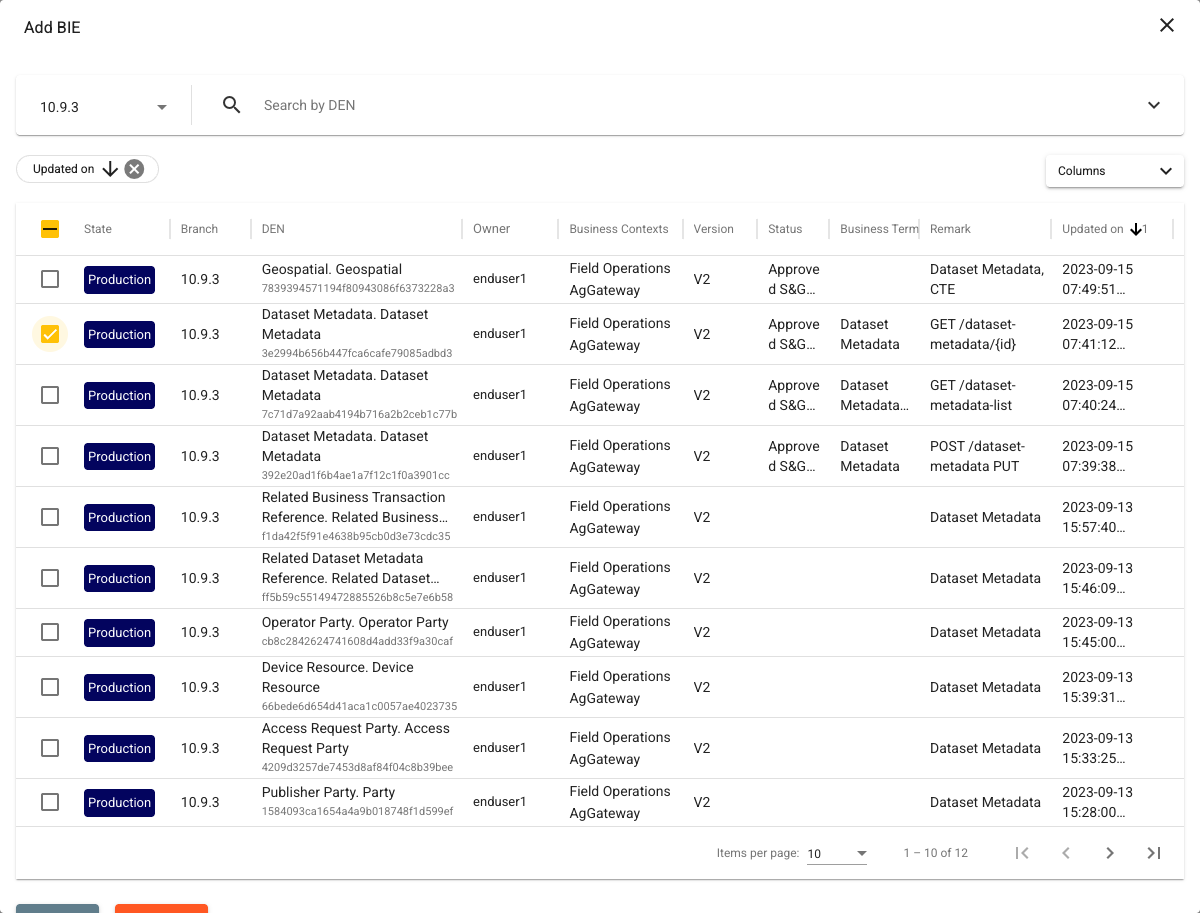
The "Add BIE" dialog opens, listing only BIEs in the Production state. Locate the desired top-level BIE using the "Search by DEN" bar, the Branch selector (single-select), or the State (fixed to Production), Business Context, Version, Remark, Owner, Updater, Updated start date, and Updated end date search filters (see How to use Search Filters).
-
Check the checkbox in front of the desired BIE(s).
-
Click the "Add" button at the bottom of the dialog; it stays disabled until at least one BIE is selected. The "Close" button dismisses the dialog without adding anything.
Replace a BIE in a BIE Package
On a revised package (one that has a prior version) in the WIP state that you own, you can swap one of its BIEs for another:
-
In the "BIE List", check exactly one BIE. A "Replace" button appears.
-
Click the "Replace" button. The "Replace BIE" dialog opens — the same Production-only BIE browser as the "Add BIE" dialog, with the DEN of the selected BIE pre-filled and a single selection allowed.
-
Select the replacement BIE and confirm.
Remove BIEs from a BIE Package
The "Remove" button is available only while the package is in the WIP state and you are its owner; it is hidden while the "BIE List" is empty and disabled until a BIE is selected.
To remove BIEs from a BIE Package:
-
Go to the "BIE Package" page by clicking the "BIE Package" menu item under the "BIE" menu.
-
Locate the BIE package you want to update using the search bar or the search filters, and click on the package name to open its "Edit BIE Package" page.
-
In the "BIE List", check the checkbox in front of the BIE(s) to remove, and click the "Remove" button.
-
The BIEs are removed without a confirmation dialog — unless the package is a revision and a selected BIE also exists in the previous package version, in which case a "Remove BIE in the previous version?" dialog asks you to confirm by clicking "Remove anyway".
BIE Package Schema Expression Generation
BIE Package schema generation produces schema files for the BIEs that are included in the BIE Package as either XML Schema or JSON Schema. The generation controls sit below the "BIE List" on the "Edit BIE Package" page; the "Generate" button and the "Manifest Version" drop-down are hidden while the package contains no BIEs. They are available in every package state and do not require ownership.
The page uses several fixed generation rules. The package export always generates each BIE schema as an individual file, always uses separate file references for reused schemas, and always includes the business context and version in generated filenames. When JSON Schema is selected, the JSON Schema version is fixed to 2020-12.
To generate BIE Package schemas:
-
Go to the "BIE Package" page by clicking the "BIE Package" menu item under the "BIE" menu.
-
Locate the BIE package you want to generate from using the search bar or the search filters, and click on the package name to open its "Edit BIE Package" page.
-
Optionally, check specific BIEs in the "BIE List" — only the checked BIEs are then generated. With nothing checked, all BIEs in the package are generated.
-
If a BIE has more than one business context, choose the one to use for generation and filenames from the drop-down in its Business Contexts column.
-
Under "Select annotation to generate for BIEs", check the annotations to include: "BIE Definition" (checked by default), "BIE CCTS Meta Data" (which enables "Include CCTS_Definition Tag"), "BIE GUID", "Business Context", "BIE OAGi/connectCenter Meta Data" (which enables "Include WHO Columns"), and "Based CC Meta Data". All of them except "Based CC Meta Data" apply only to XML Schema and are disabled while JSON Schema is selected.
-
Under "Select an expression", choose either XML Schema or JSON Schema.
-
Next to the "Generate" button, choose the Manifest Version from the drop-down: 0.2 (the default) produces the stable manifest; 0.3 (draft) additionally includes the Revision Reason and the per-BIE backward compatibility indicators described below.
-
Click the "Generate" button.
The generated result is downloaded to the local drive as a ZIP archive named after the package ({Package Name}-{Version Name}-{Version ID}-{timestamp}.zip, with whitespace and characters not allowed in filenames removed). The archive contains one schema file per generated BIE and, alongside them, a manifest.json file that describes the package. The manifest always describes every BIE in the package, even when only a subset was selected for generation.
The manifest.json records:
- the manifest version,
- the package metadata (name, version, and the UUIDs of this package and, when this package is a revision, of the prior package version),
- for each BIE: its DEN, GUID, version, business contexts (with their context scheme values), remark, and the name of its generated schema file,
- how the package differs from the prior package version (which BIEs and components were added, removed, changed, or deprecated),
- a library compatibility section naming the library and the latest release used by the package's BIEs.
When the 0.3 (draft) Manifest Version is selected, the manifest also includes the Revision Reason captured on the "Edit BIE Package" page and, for each BIE, a backward compatibility indicator that reports whether the BIE remains backward compatible with its counterpart in the prior package version. The indicator is reported separately for the XML Schema expression and the JSON Schema expression; a value of true means the BIE is backward compatible for that expression. A BIE that has no prior counterpart — because it is new in this package version, or because the package has no prior version — is reported with both indicators set to false. The default 0.2 manifest omits both the Revision Reason and the backward compatibility indicators.