Update User’s Information (including password reset)
A user with the Admin right can change the Login ID, Name, Organization, Admin right, and password of another user. To do so,
-
Click the "Admin" menu.
-
Choose "Account" from the drop-down list.
-
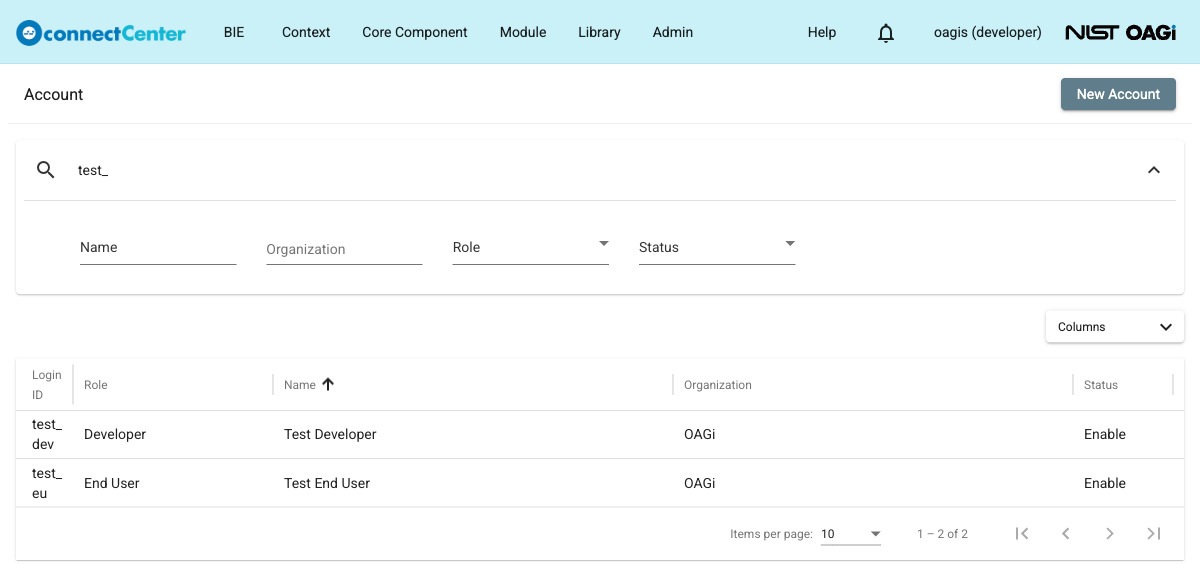
On the "Account" page, use the search bar at the top to find the desired user account. The search bar matches the Login ID; click the arrow at its right end to open additional filters for the Name, Organization, Role, and Status.
-
Click the "Login ID" of the desired user to open the "Edit Account" page.
-
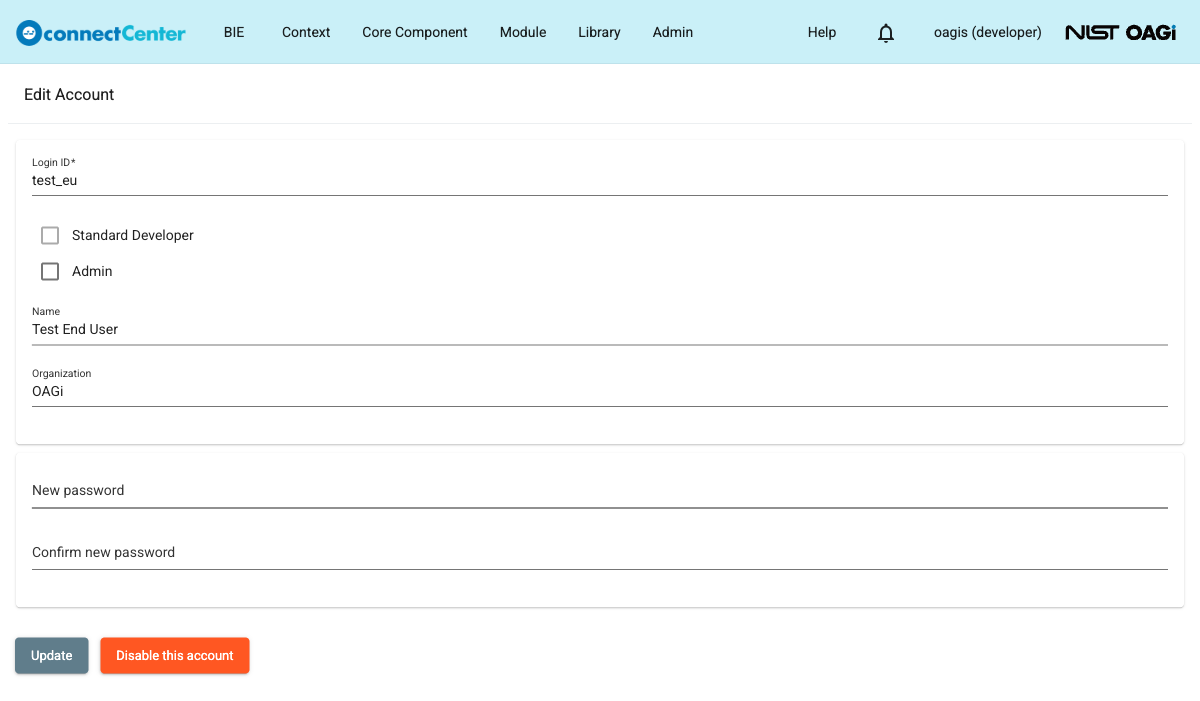
Change the fields such as Login ID, Name, Organization, Admin, and New password as desired. The "Standard Developer" checkbox is displayed for reference, but it cannot be changed on the edit page.
-
Click the "Update" button. connectCenter shows an "Updated" message and returns to the "Account" page.
Leaving the "New password" and "Confirm new password" fields empty keeps the user's current password. A new password must be at least five characters, and the "Update" button stays disabled until the two password fields match (see Password Management). For accounts associated with SSO, the password fields are not shown at all; the page instead displays the read-only SSO profile and a "Disassociate SSO" button (see Using Single Sign-On).
The same page also provides the buttons for disabling, re-enabling, and removing the account; see Enable or Disable User Account.