Select Terminology
A user can select either the CCTS (Core Component Technical Specification) or the connectSpec terminology. The selection adds terms from the selected terminology to menu items and other UI labels, as hover balloons or in parentheses. Any signed-in user can select a terminology; the Admin right is not required.
To select a terminology:
-
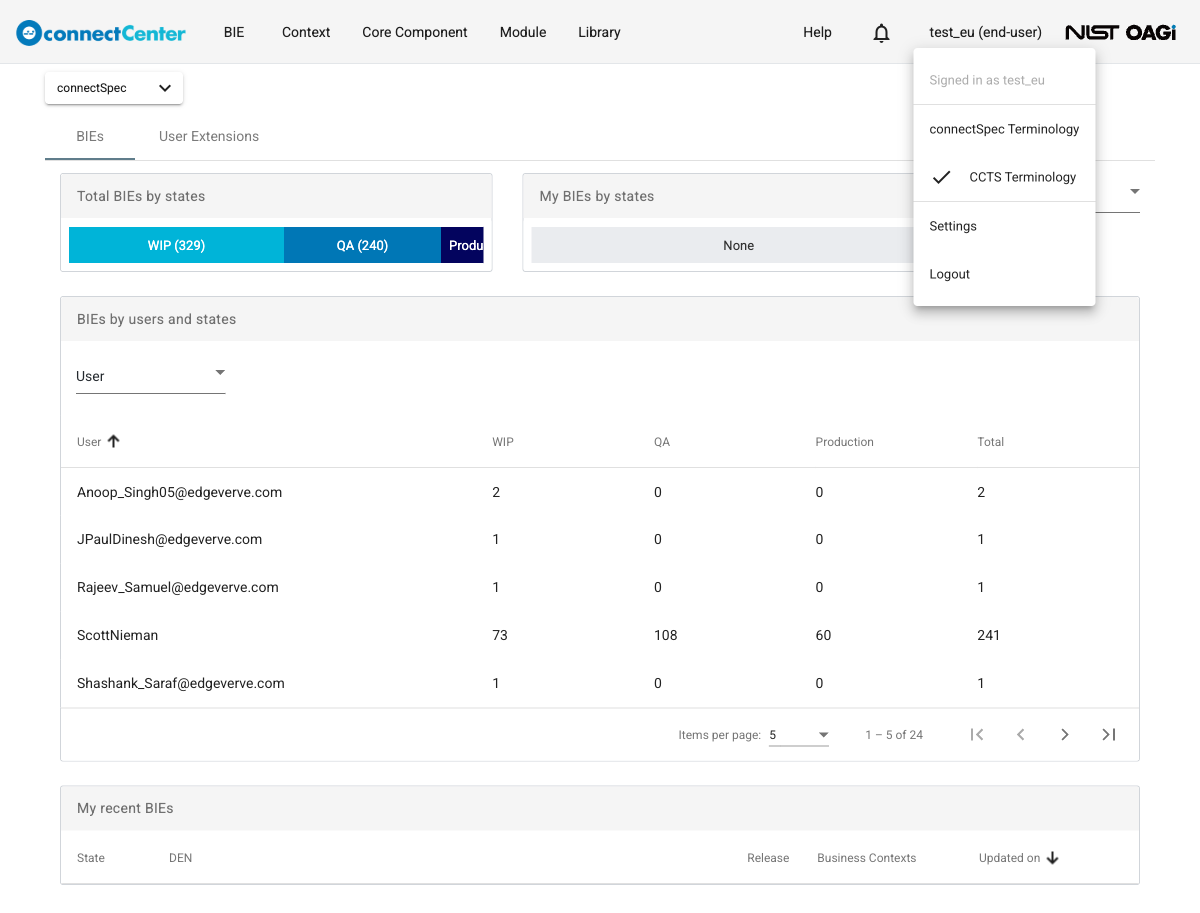
On the right side of the top menu of the page, click the account's name (shown with the role, e.g., "test_eu (end-user)").
-
Select a terminology, i.e., "CCTS Terminology" or "connectSpec Terminology", from the drop-down list. Note that CCTS Terminology is the default/baseline one, i.e., no balloon or additional term appears.
-
A check mark appears next to the selected terminology.
What changes with a non-baseline terminology
With "connectSpec Terminology" selected, the change takes effect immediately:
-
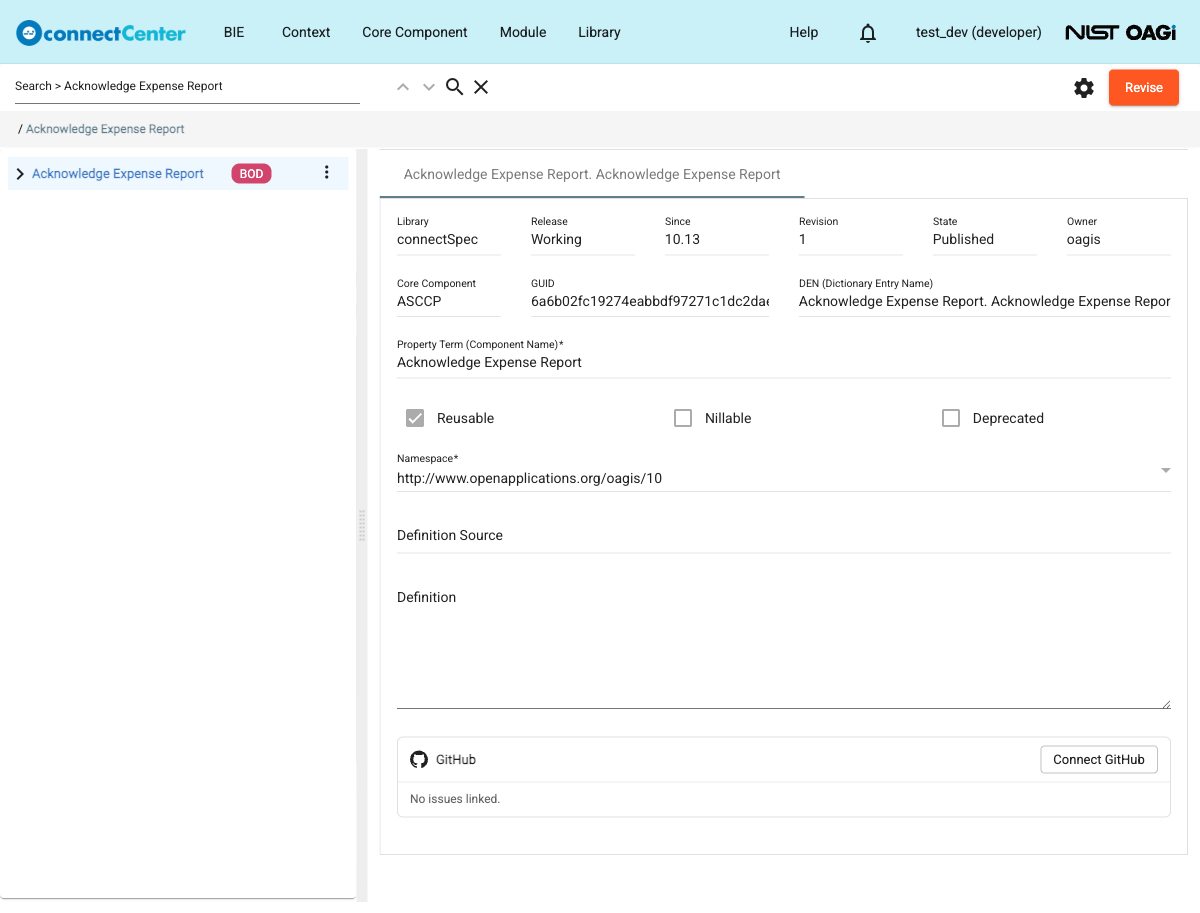
Field labels on the Core Component and BIE pages show the connectSpec term in parentheses, e.g., "DEN (Dictionary Entry Name)" or "Property Term (Component Name)".
-
Hovering over the "BIE" and "Core Component" top menus and most items of the "BIE" menu shows a balloon with the corresponding connectSpec terms, e.g., "Manage Profiled Component, Noun, BOD" for the "BIE" menu.
The terminology selection is saved in the browser, not in the user account. It is restored on the next visit in the same browser, but it does not follow the account to another browser or device.