Password Management
Change password
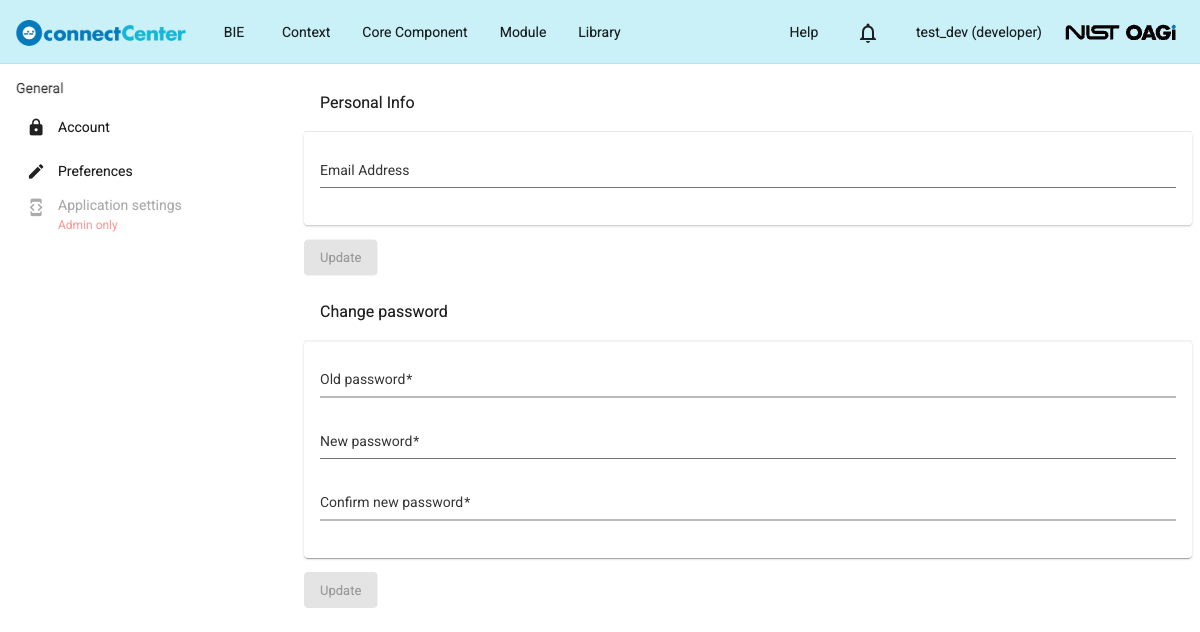
A user can change the password through the account settings page when the account uses local password-based sign-in. For accounts that sign in through SSO (see Using Single Sign-On), the "Change password" section is not shown. The same page also allows the user to update the email address in the "Personal Info" section; while the email address is unverified, a "Resend Validation Request" button is available there as well. Sending verification emails requires the "Email-Based Workflows" feature and valid SMTP settings (see Application Settings).
To change the password:
-
On the right side of the top menu of the page, click the account's name (shown with the role, e.g., "test_dev (developer)").
-
Choose "Settings" from the drop-down list.
-
On the "Account" settings page, go to the "Change password" section and fill out the fields:
-
"Old password", which is the current password.
-
"New password".
-
"Confirm new password".
-
-
Click the "Update" button below the "Change password" section (the "Personal Info" section has its own "Update" button). connectCenter shows an "Updated" message.
The password must be at least five characters. If the old password is incorrect, the update is rejected.
Forgotten password
connectCenter has no self-service password reset. In the event a user has forgotten the password, the user should ask someone that has the Admin right to change or reset it. Password reset applies to accounts that use local password-based sign-in.
Assuming you are a user with the Admin right, to change/reset someone else's password:
-
Click the "Admin" menu.
-
Choose "Account" from the drop-down list.
-
On the "Account" page, click the "Login ID" of the user that has forgotten his/her password.
-
On the "Edit Account" page, enter the new password of the user into the "New password" field. The admin does not need to know the user's old password.
-
Verify the new password of the user by entering it again into the "Confirm new password" field.
-
Click the "Update" button. connectCenter shows an "Updated" message and returns to the "Account" page.
Note that you can change the Login ID, Name, and Organization of a user while changing his/her password (see Update User’s Information).