Manage tenant-user associations
Users must be associated with a tenant to work with BIEs in multi-tenant mode; among others, a user who is not associated with any tenant cannot create a BIE.
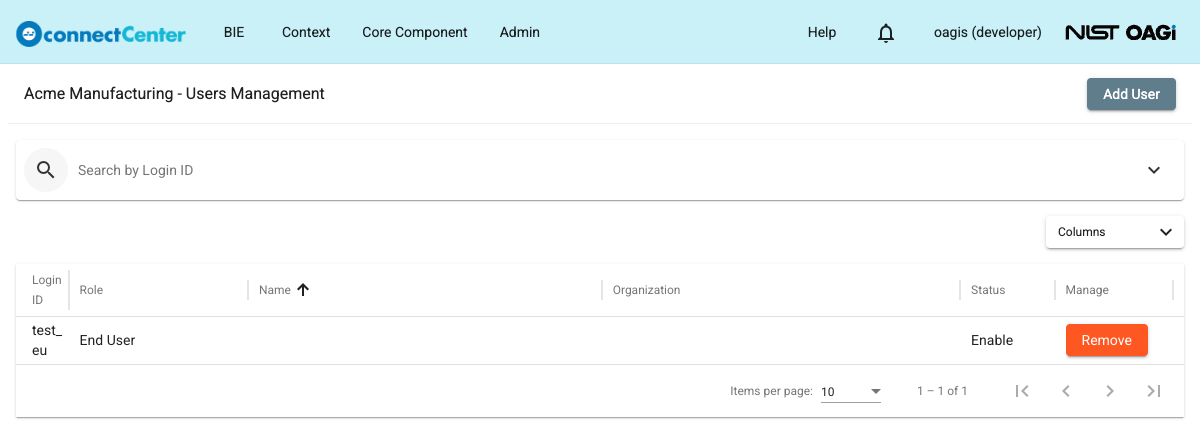
The associations of a tenant are managed on its "Users Management" page, titled with the tenant name. The page lists the users associated with the tenant with the "Login ID", "Role", "Name", "Organization", and "Status" columns.
Associate a tenant and user
To associate a tenant and user:
-
Choose "Admin" and then "Tenant".
-
On the "Tenant Roles" page, click "Manage Users" for the desired tenant.
-
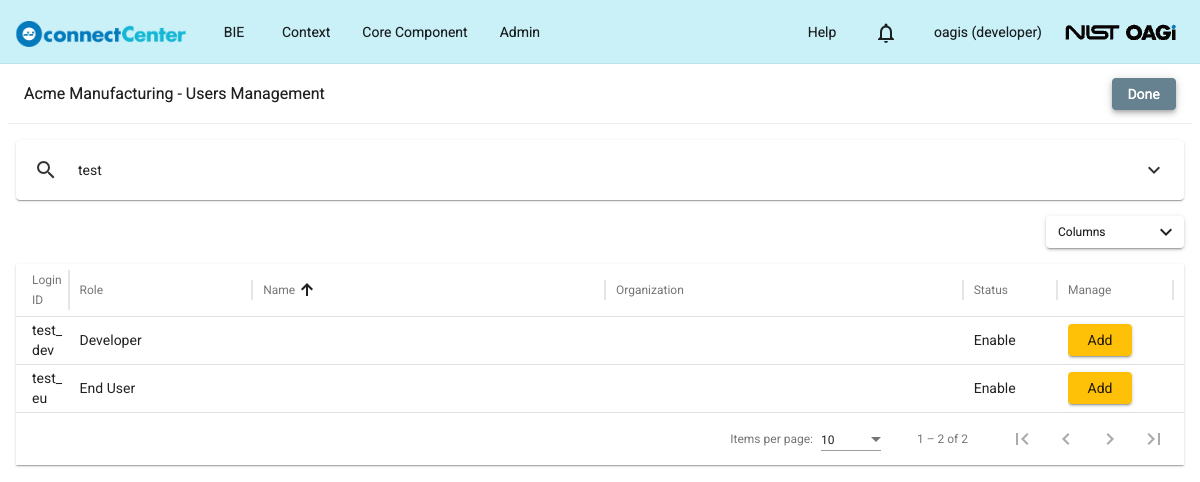
On the "Users Management" page, click the "Add User" button. The page switches to the add view, listing the users that are not yet associated with the tenant, and the toolbar button changes to "Done".
-
Search for the desired user by Login ID, or expand the advanced search with the chevron-down button at the right end of the search bar to filter by "Name", "Organization", or "Status" (Enable/Disable). See also How to use Search Filters.
-
Click the "Add" button for the desired user. The user disappears from the add view and is associated with the tenant immediately. Both end users and developers can be associated.
-
Click "Done" to return to the list of associated users.
Dissociate a tenant and user
To dissociate a tenant and user:
-
Choose "Admin" and then "Tenant".
-
On the "Tenant Roles" page, click "Manage Users" for the desired tenant.
-
On the "Users Management" page, find the desired user.
-
Click the "Remove" button for that user. The association is removed immediately, without a confirmation dialog.