Enable or Disable User Account
A user account can be Enabled or Disabled. Disabling a user account prevents the user from using connectCenter with that account: any active session of the user ends immediately, and anyone signing in with the account is shown a disabled-account page until it is re-enabled.
In connectCenter, disabling and re-enabling a user account is done on the "Edit Account" page, which is available only to users with the Admin right.
To disable or re-enable a user account:
-
Click the "Admin" menu.
-
Choose "Account" from the drop-down list.
-
On the "Account" page, click the "Login ID" of the user account that you want to disable or re-enable.
-
On the "Edit Account" page, click "Disable this account" to disable the login via this account or "Enable this account" to re-enable it.
The change takes effect immediately, without a confirmation dialog. connectCenter only shows a brief "Disabled" or "Enabled" message.
The status of a user account (i.e., Enable or Disable) is displayed in the "Status" column of the "Account" list page, and the advanced search filters include a "Status" filter for finding disabled accounts.
Remove an account
If an account is disabled and has no associated data (data it created, owns, or last updated), the admin can also remove it permanently by clicking "Remove this account" on the "Edit Account" page.
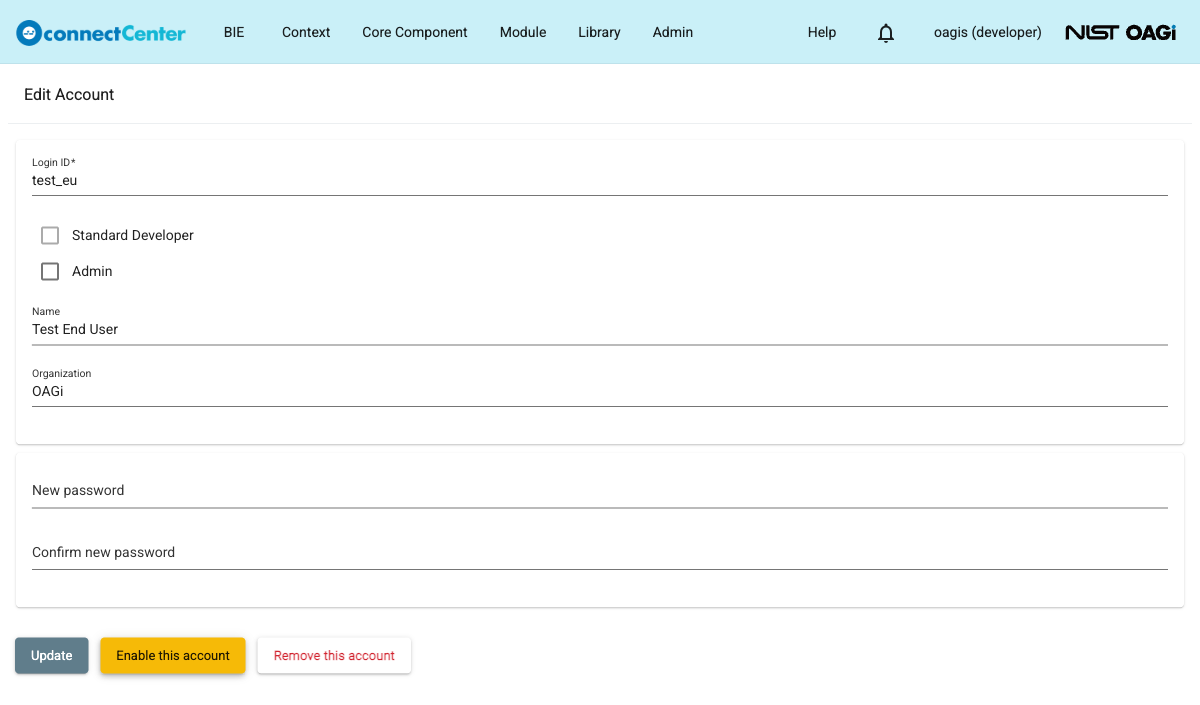
The "Remove this account" button appears only while the account is disabled and holds no such data. Clicking it opens a "Remove account?" confirmation dialog that warns "The removed account cannot be recovered."; click "Remove" to permanently delete the account or "Cancel" to keep it.