Application Settings
Users with the Admin right can change application-wide settings from the "Application settings" page. In the Settings area, the "Application settings" entry is available only to users with the Admin right; for other users it is greyed out with an "Admin only" note.
To open the page:
-
On the right side of the top menu of the page, click the account's name.
-
Choose "Settings" from the drop-down list.
-
Click "Application settings" on the left side of the page.
The page consists of the sections "Application Features", "SMTP settings", "Filename Expressions", and "Web Page Settings".
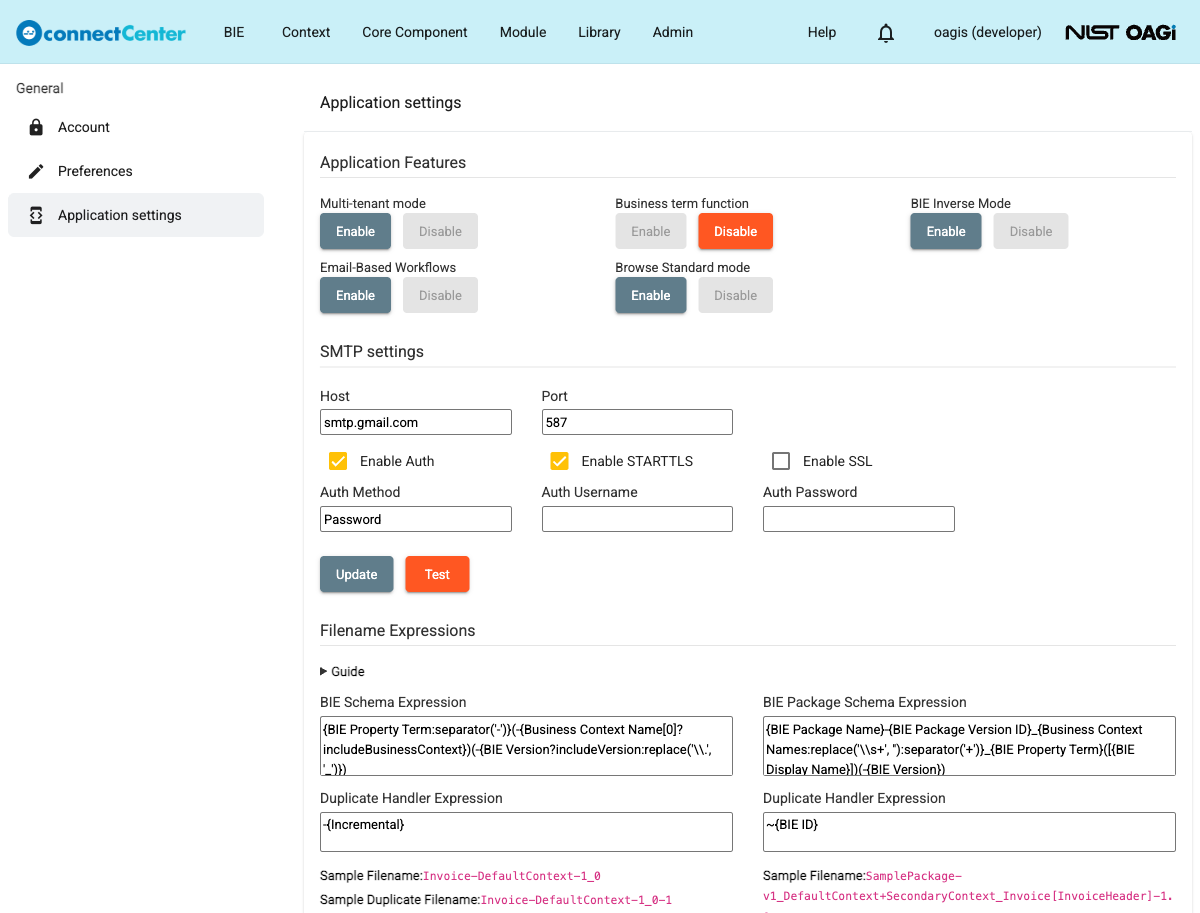
Application Features
The "Application Features" section lists the feature toggles "Multi-tenant mode", "Business term function", "BIE Inverse Mode", "Email-Based Workflows", and "Browse Standard mode". Each feature has an "Enable" and a "Disable" button; the button matching the current state is greyed out, so the buttons also show whether the feature is currently on or off.
Enabling or disabling a feature follows the same pattern:
-
Click "Enable" (or "Disable") for the feature.
-
A confirmation dialog opens; review the message and click "Enable" (or "Disable") to apply the change. Click "Cancel" if you do not want to change the setting.
-
Wait for the "Updated" message.
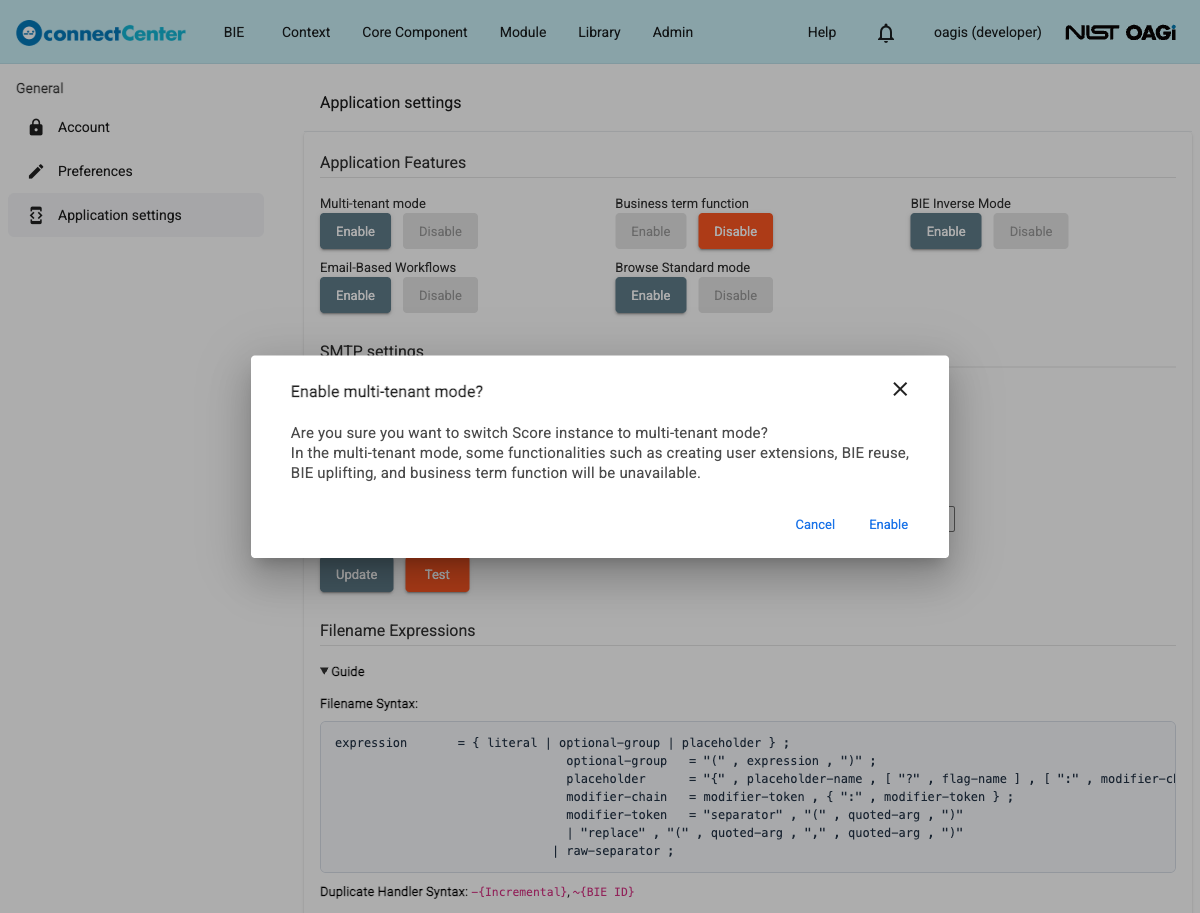
Multi-tenant mode
Multi-tenant management is activated when the multi-tenant mode configuration is enabled. Note that some functionalities such as creating user extensions, BIE reuse, BIE uplifting, and the business term function will be unavailable in the multi-tenant mode. See Multi-tenant mode feature restrictions for more details.
Enabling multi-tenant mode automatically disables the business term function, and the "Business term function" buttons stay unavailable while multi-tenant mode is on.
Business term function
Business term management is activated when the business term configuration is enabled. Note that changing this setting may cause loss of legacy business term data in BIEs; the confirmation dialog warns about this. See Manage Business Terms for more details.
BIE Inverse Mode
When the BIE inverse mode is enabled, BIE editors can turn on an "Inverse Mode" option on a BIE, which processes all disabled nodes under the root BIE as enabled nodes. Note that the BIE expression could fail if the system does not have enough memory to express a large BIE. See Restrict a BIE for more details.
Email-Based Workflows
Email-based workflows are activated when the Email-Based Workflows configuration is enabled. This feature depends on valid SMTP settings. If SMTP is not configured correctly, email-based actions may not operate properly, so configure and save the SMTP settings first.
Browse Standard mode
Browse Standard mode can be enabled or disabled for end users. When enabled, end users see a single "Browse Standard" item in the top menu instead of the regular "Core Component" menu. See Browser View Mode for more details about the resulting browsing experience.
SMTP settings
Administrators can configure the SMTP "Host", "Port", "Enable Auth", "Enable STARTTLS", "Enable SSL", "Auth Method", "Auth Username", and "Auth Password" settings in this section.
To update the SMTP settings:
-
Enter or change the SMTP host, port, and optional authentication settings.
-
Click the "Update" button.
-
Wait for the "Updated" message.
To test the SMTP settings, click the "Test" button. connectCenter sends a test email to the email address of your own account; if the test succeeds, the page shows the message "The test message has been sent.". If email-based features do not work as expected, review the auth, STARTTLS, and SSL settings and test again.
Filename Expressions
Administrators can configure filename expressions for generated BIE schema files and BIE Package schema files. The section provides editable expressions, duplicate-handler expressions, and sample filename previews. Open the built-in "Guide" area in the section to see the same syntax reference while editing.
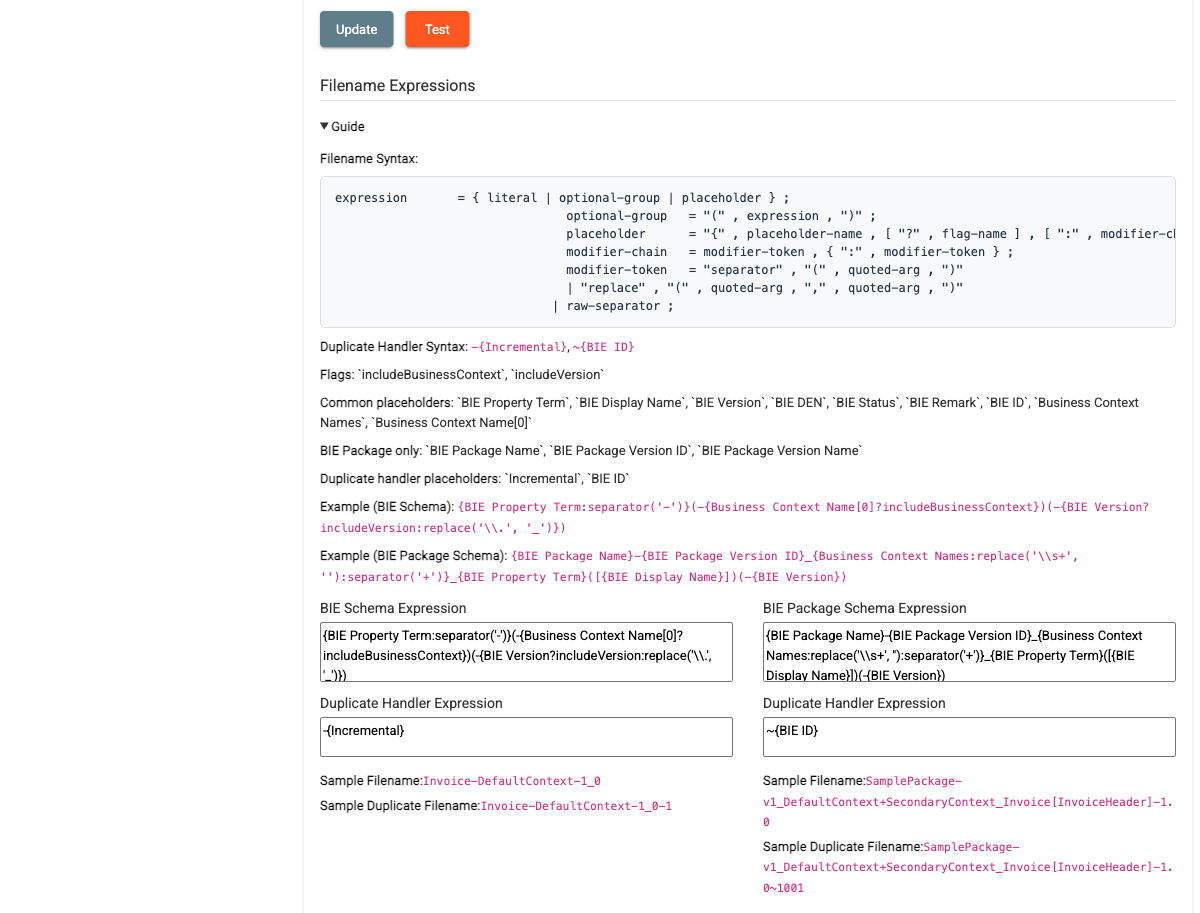
The filename expression syntax supports the following forms:
| Syntax | Meaning |
|---|---|
{Placeholder} | Inserts the value of a placeholder directly into the generated filename. |
(optional-group) | Wraps a part of the expression that may be omitted when its contents do not produce a value. |
{Placeholder?flag} | Includes the placeholder only when the specified flag is enabled. |
{Placeholder:separator('-')} | Joins multiple values from the placeholder by using the given separator; whitespace inside each value is replaced with the separator as well. |
{Placeholder:replace('regex', 'replacement')} | Replaces text in the placeholder value by using the given regular expression and replacement string. |
The duplicate-handler expression supports values such as -{Incremental} and ~{BIE ID}.
Use this expression to generate a different filename when the main filename already exists.
Duplicate-handler expressions do not support ?flag conditions.
The available flags are includeBusinessContext and includeVersion.
These flags can be used in conditional placeholder syntax such as {BIE Version?includeVersion}.
Common placeholders include BIE Property Term, BIE Display Name, BIE Version, BIE DEN, BIE Status, BIE Remark, BIE ID, Business Context Names, and Business Context Name[0].
BIE Package expressions also support BIE Package Name, BIE Package Version ID, and BIE Package Version Name.
Duplicate-handler expressions support the placeholders Incremental and BIE ID.
Inside replace() arguments, a backslash works as an escape character.
Escape regular-expression backslashes by doubling them: write \\. for a literal dot and \\s+ for whitespace.
Example BIE Schema expression:
{BIE Property Term:separator('-')}(-{Business Context Name[0]?includeBusinessContext})(-{BIE Version?includeVersion:replace('\\.', '_')})
Example BIE Package Schema expression:
{BIE Package Name}-{BIE Package Version ID}_{Business Context Names:replace('\\s+', ''):separator('+')}_{BIE Property Term}([{BIE Display Name}])(-{BIE Version})
To update the filename expressions:
-
Edit the "BIE Schema Expression" and its "Duplicate Handler Expression" fields as needed.
-
Edit the "BIE Package Schema Expression" and its "Duplicate Handler Expression" fields as needed.
-
Review the sample filename previews for both sections. The previews update while you edit the expressions.
-
Click the "Update" button.
-
If the expressions are valid, wait for the "Updated" message. If an expression is invalid, an error message appears and the update is not applied.
Web Page Settings
In "Web Page Settings", administrators can change the brand logo on the navigation bar, the favicon of the webpage, the sign-in page statement, and the colors for component states, release states, and user roles.
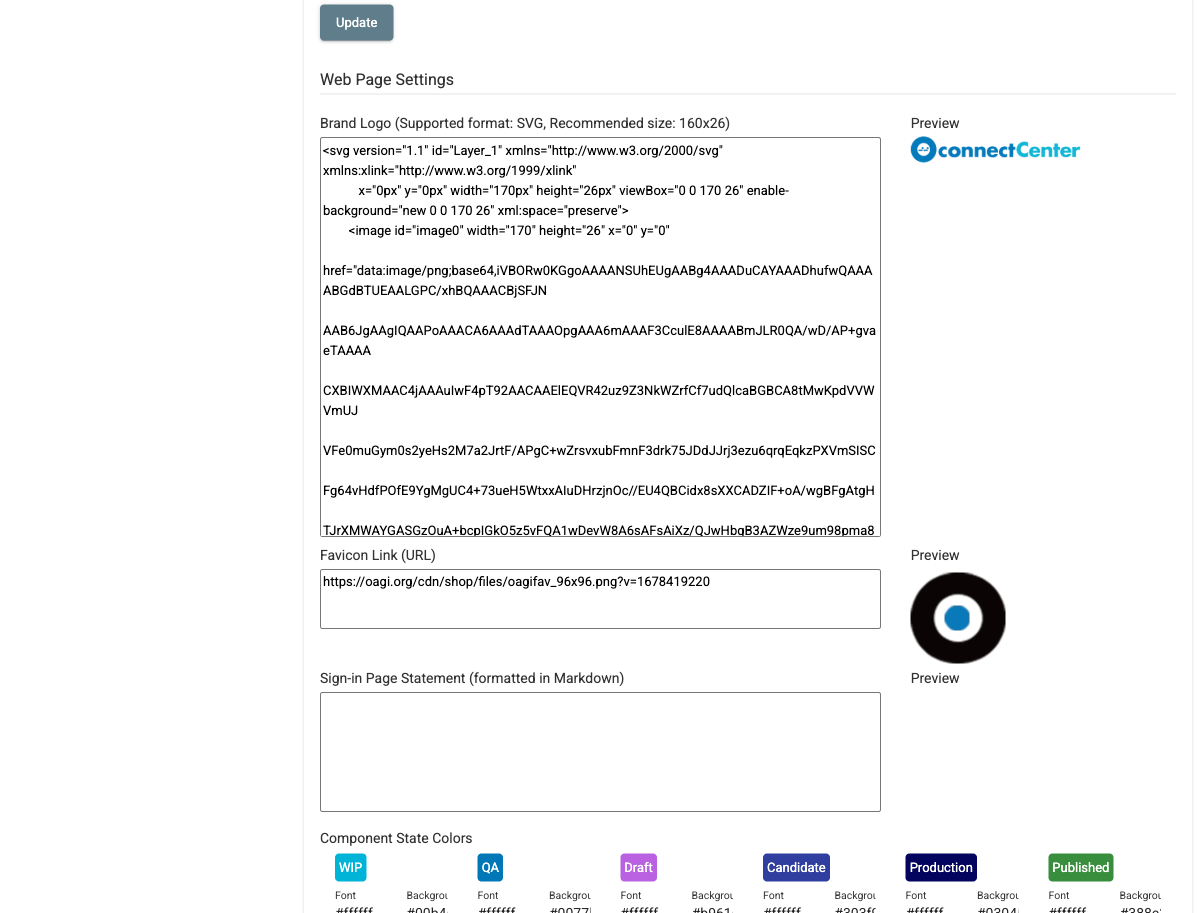
-
Brand Logo: paste the text of the brand logo in SVG format into the "Brand Logo" input field (the recommended size is 160x26). A preview of the brand logo appears on the right side of the input field.
-
Favicon: paste the URL of the favicon into the "Favicon Link (URL)" input field. A preview of the favicon appears on the right side of the input field.
-
Sign-in Page Statement: paste the text of the sign-in page statement in Markdown format into the "Sign-in Page Statement" input field. A preview of the statement appears on the right side of the input field.
-
Component State/Release State/User Role Colors: enter the font and background colors as CSS color values (e.g.,
#000000) for each item. A preview of the item appears above its "Font" and "Background" input fields.
After changing the settings, click the "Update" button at the bottom of the section to apply the changes. Some changes take effect for users after they sign in again.